> ## Documentation Index
> Fetch the complete documentation index at: https://docs.sonderplan.com/llms.txt
> Use this file to discover all available pages before exploring further.
# Booking Statuses
> Learn how Admins can create and manage custom booking statuses, complete with colour coding and notification settings to match your workflow.
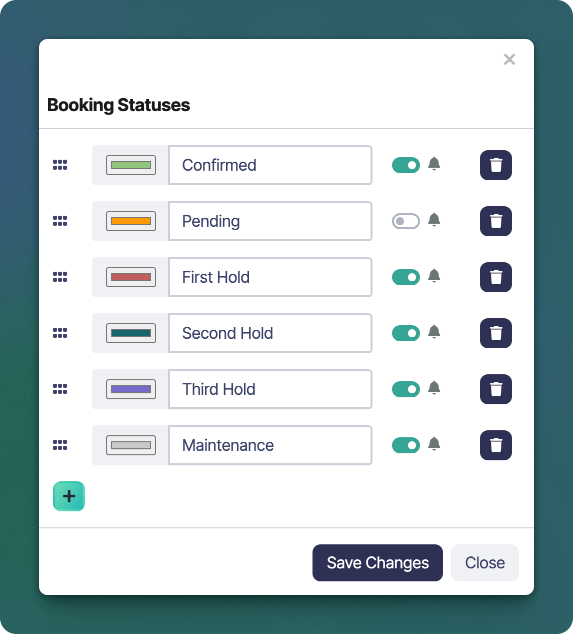
The *Booking Statuses* screen allows administrators to define and manage custom statuses used across all bookings in the Schedule. This feature helps categorise bookings by their stage or purpose, making it easier for your team to understand the status of work at a glance.
To manage Booking Statuses go to **Schedule -> -> Booking Statuses**.
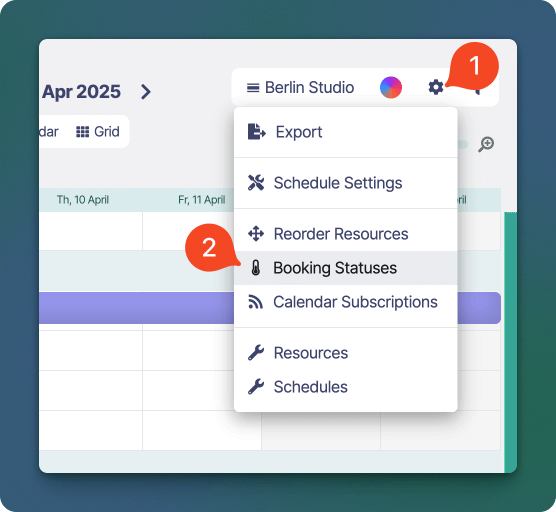 The Booking Statuses window will **open**.
 ## Create / Edit a Booking Status
1. Use the button at the bottom to create a new Booking Status.
2. Enter the **name** of the Booking Status in the input text field. Common examples include "Pending", "Confirmed", "First Hold", "Second Hold" and "Maintenance".
3. Click the colour picker to assign a **colour** to the booking status. Bookings will use this colour when they have been assigned this status.
If you are migrating from another tool, we recommend keeping the colours consistent with your existing tool to help make your teams adjustment easier.
4. The ** notification** toggle switch lets you control whether a status will trigger email notifications when bookings are created or updated. This is useful for suppressing notifications on tentative or internal bookings (e.g., "Pending" or "Hold").
5. Use the ** drag** handles on the left to **reorder** statuses. This order will be reflected in the booking editor status menus.
6. Click **Save Changes** to apply your updates
7. Repeat these steps for to create as many statuses as you require.
## Delete a Booking Status
1. To delete a booking status click the button next to the custom status you wish to delete.
2. A delete confirmation popup is shown, click **Delete** to confirm the deletion.
## Create / Edit a Booking Status
1. Use the button at the bottom to create a new Booking Status.
2. Enter the **name** of the Booking Status in the input text field. Common examples include "Pending", "Confirmed", "First Hold", "Second Hold" and "Maintenance".
3. Click the colour picker to assign a **colour** to the booking status. Bookings will use this colour when they have been assigned this status.
If you are migrating from another tool, we recommend keeping the colours consistent with your existing tool to help make your teams adjustment easier.
4. The ** notification** toggle switch lets you control whether a status will trigger email notifications when bookings are created or updated. This is useful for suppressing notifications on tentative or internal bookings (e.g., "Pending" or "Hold").
5. Use the ** drag** handles on the left to **reorder** statuses. This order will be reflected in the booking editor status menus.
6. Click **Save Changes** to apply your updates
7. Repeat these steps for to create as many statuses as you require.
## Delete a Booking Status
1. To delete a booking status click the button next to the custom status you wish to delete.
2. A delete confirmation popup is shown, click **Delete** to confirm the deletion.