> ## Documentation Index
> Fetch the complete documentation index at: https://docs.sonderplan.com/llms.txt
> Use this file to discover all available pages before exploring further.
# Import Services
> Sonderplan supports importing Services from CSV files, allowing you to quickly bring existing Services into your workspace
## Supported File Format
* **CSV (.csv)**
* UTF-8 encoded
* Must follow the Sonderplan CSV template structure
You can download the template directly from the import screen under **Sales -> Services -> -> Import**
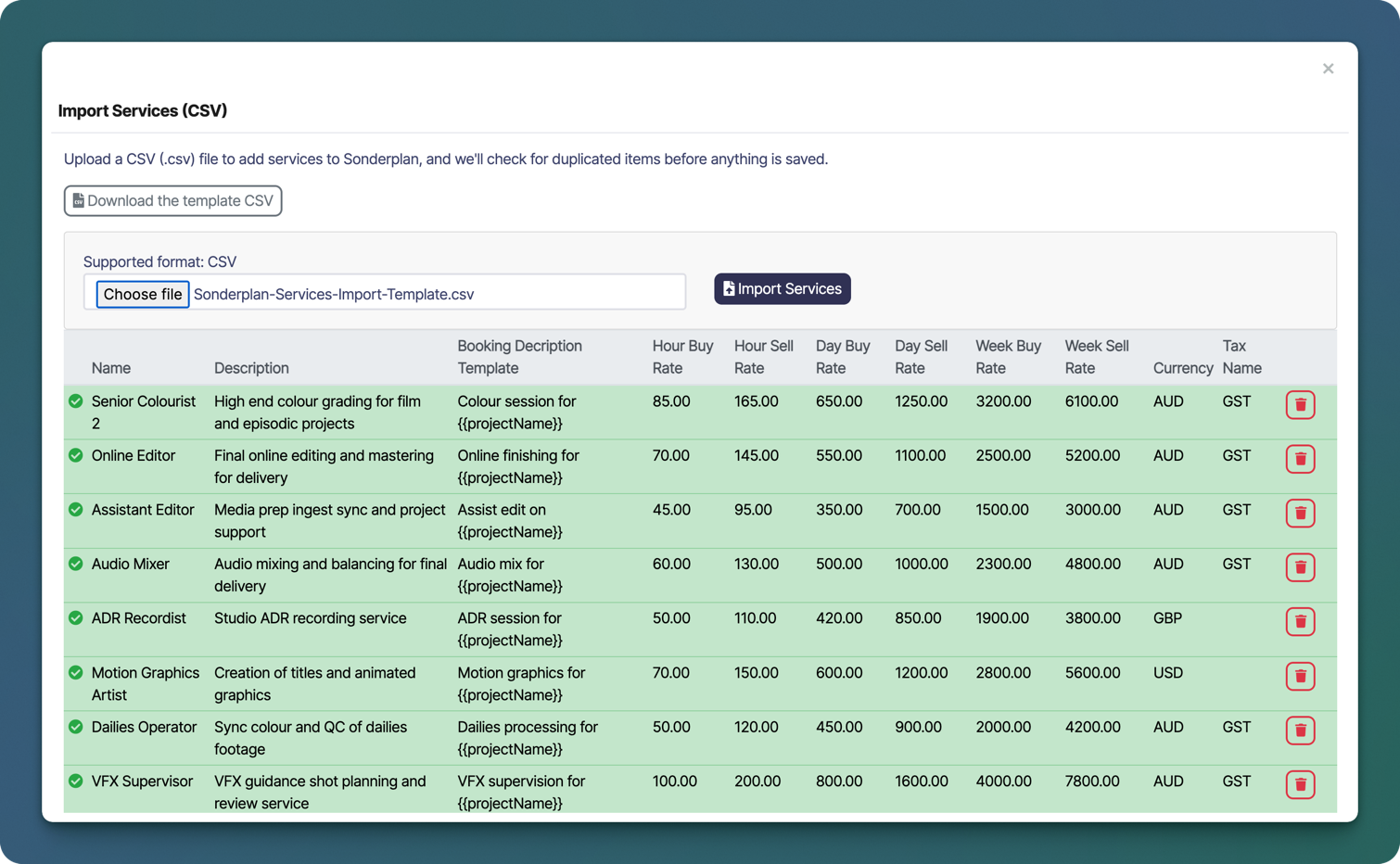 ## What Gets Imported
Each row in the CSV represents a service. The following fields are supported:
* Service name
* Description
* Booking description template
* Hour buy rate
* Hour sell rate
* Day buy rate
* Day sell rate
* Week buy rate
* Week sell rate
* Currency
* Tax name (e.g. GST, VAT)
Before starting the import, please make sure that any [Sales Taxes](/en/admin/sales-taxes) referenced have already been created with the identical name.
## Duplicate Detection
Before saving, Sonderplan checks for duplicated services to help prevent accidental duplicates in your service list.
You can review all detected services and remove individual rows before completing the import.
## How to Import Services
1. Go to **Services → Import**
2. Click **Download the template CSV** and populate it with your services
3. Click **Choose file** and select your completed CSV file
4. Review the imported services in the preview table
5. Click **Import Services** to save them to your workspace
### Review Before Importing
Before finalising the import, Sonderplan provides a preview table where you can:
* Confirm service names and descriptions
* Verify buy and sell rates across hour, day, and week pricing
* Check booking description templates
* Confirm currency and tax settings
* Remove individual services from the import
No services are saved until you confirm the import by clicking the **Import Services** button.
## What Gets Imported
Each row in the CSV represents a service. The following fields are supported:
* Service name
* Description
* Booking description template
* Hour buy rate
* Hour sell rate
* Day buy rate
* Day sell rate
* Week buy rate
* Week sell rate
* Currency
* Tax name (e.g. GST, VAT)
Before starting the import, please make sure that any [Sales Taxes](/en/admin/sales-taxes) referenced have already been created with the identical name.
## Duplicate Detection
Before saving, Sonderplan checks for duplicated services to help prevent accidental duplicates in your service list.
You can review all detected services and remove individual rows before completing the import.
## How to Import Services
1. Go to **Services → Import**
2. Click **Download the template CSV** and populate it with your services
3. Click **Choose file** and select your completed CSV file
4. Review the imported services in the preview table
5. Click **Import Services** to save them to your workspace
### Review Before Importing
Before finalising the import, Sonderplan provides a preview table where you can:
* Confirm service names and descriptions
* Verify buy and sell rates across hour, day, and week pricing
* Check booking description templates
* Confirm currency and tax settings
* Remove individual services from the import
No services are saved until you confirm the import by clicking the **Import Services** button.