> ## Documentation Index
> Fetch the complete documentation index at: https://docs.sonderplan.com/llms.txt
> Use this file to discover all available pages before exploring further.
# Manage Project Folders
> Organise your projects into folders for better structure and easier navigation—create, rename, rearrange, and delete folders
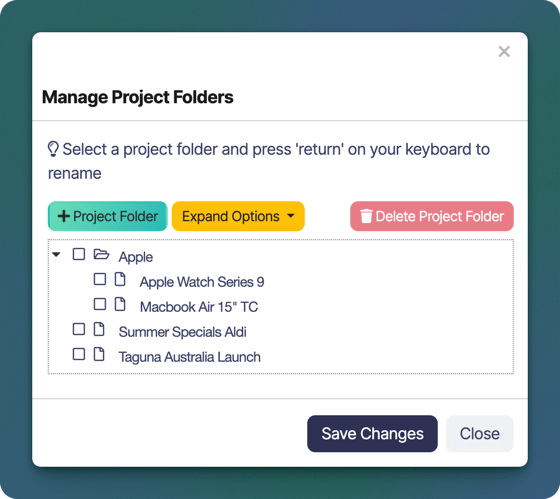
The Manage Project Folders feature, accessed by going to **Projects -> -> Project Folders**, allows administrators to organise projects into folders for easier navigation and improved structure.
 ### Create Folders
Click the ** Project Folder** button to add a new folder to the project tree. You can create top-level folders or subfolders as needed.
### Rename Folders
To rename a folder, click on it and press Return ↵ on your keyboard to begin editing the name. Press Return ↵ again to save the changes to the project folder name.
Only project folders can be renamed in this window, to rename a Project, open it in the Project Editor window
### Rearrange Projects / Folders
To move a project or folder, **click and hold** its name, then **drag it** to a different folder or to the top level of the project tree.
### Delete Folders
To delete a project folder, click the ** Delete Project Folder** button. A confirmation window will appear, click **Delete** again to confirm the delete.
Only the Project folder will be deleted, any nested projects will be kept and moved to the top of the tree
### Create Folders
Click the ** Project Folder** button to add a new folder to the project tree. You can create top-level folders or subfolders as needed.
### Rename Folders
To rename a folder, click on it and press Return ↵ on your keyboard to begin editing the name. Press Return ↵ again to save the changes to the project folder name.
Only project folders can be renamed in this window, to rename a Project, open it in the Project Editor window
### Rearrange Projects / Folders
To move a project or folder, **click and hold** its name, then **drag it** to a different folder or to the top level of the project tree.
### Delete Folders
To delete a project folder, click the ** Delete Project Folder** button. A confirmation window will appear, click **Delete** again to confirm the delete.
Only the Project folder will be deleted, any nested projects will be kept and moved to the top of the tree