> ## Documentation Index
> Fetch the complete documentation index at: https://docs.sonderplan.com/llms.txt
> Use this file to discover all available pages before exploring further.
# Quote & Invoice Themes
> Customize and brand your quotes and invoices with themes tailored to your business identity.
The *Quote / Invoice Theme Editor* allows administrators to create and customise multiple quote and invoice themes that reflect their brand. Companies operating under multiple business names can create multiple different themes that can be selected on each quote or invoice.
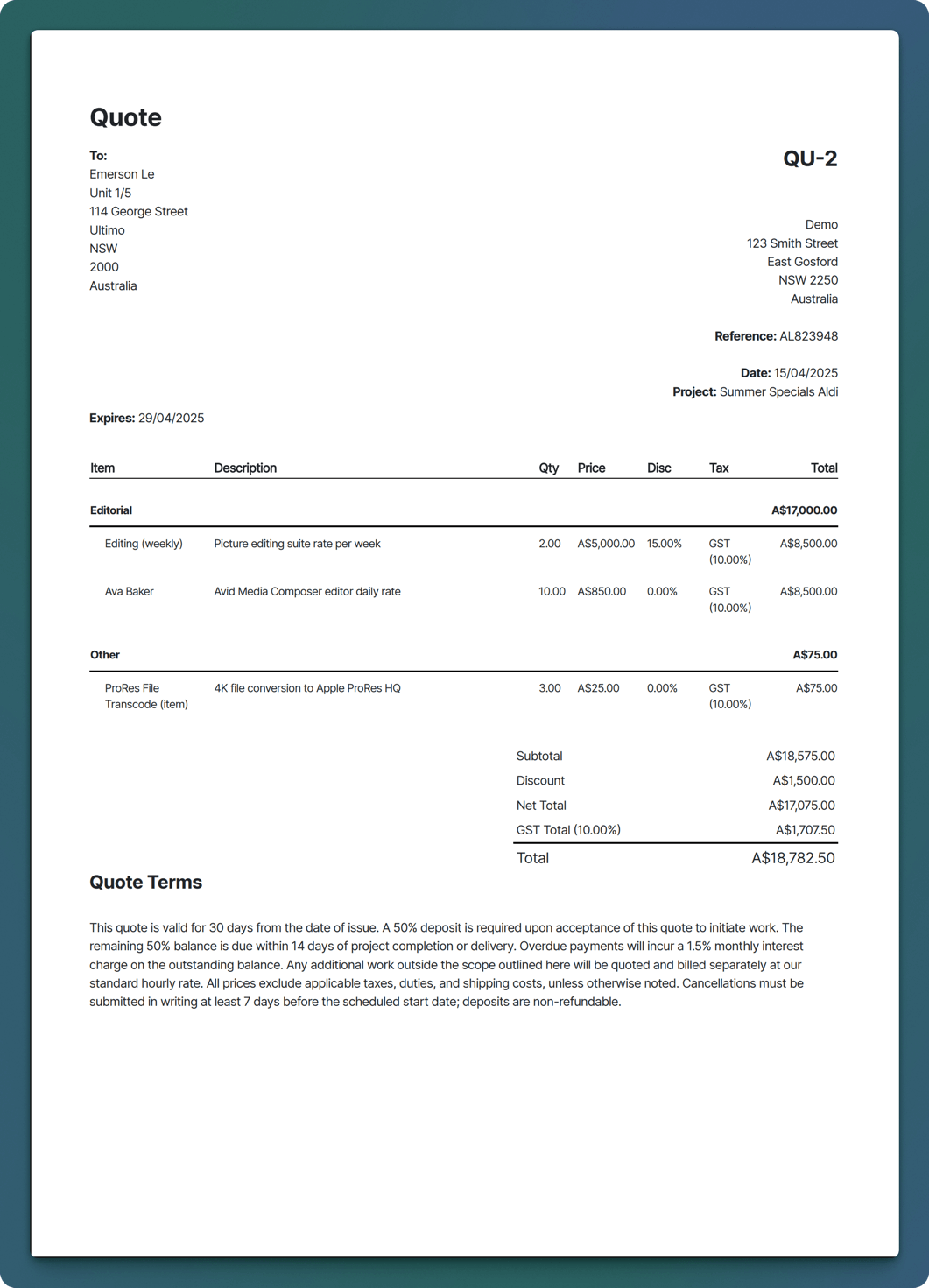 From this point, we'll mostly talk about **invoice themes**, however quote templates are almost identical!
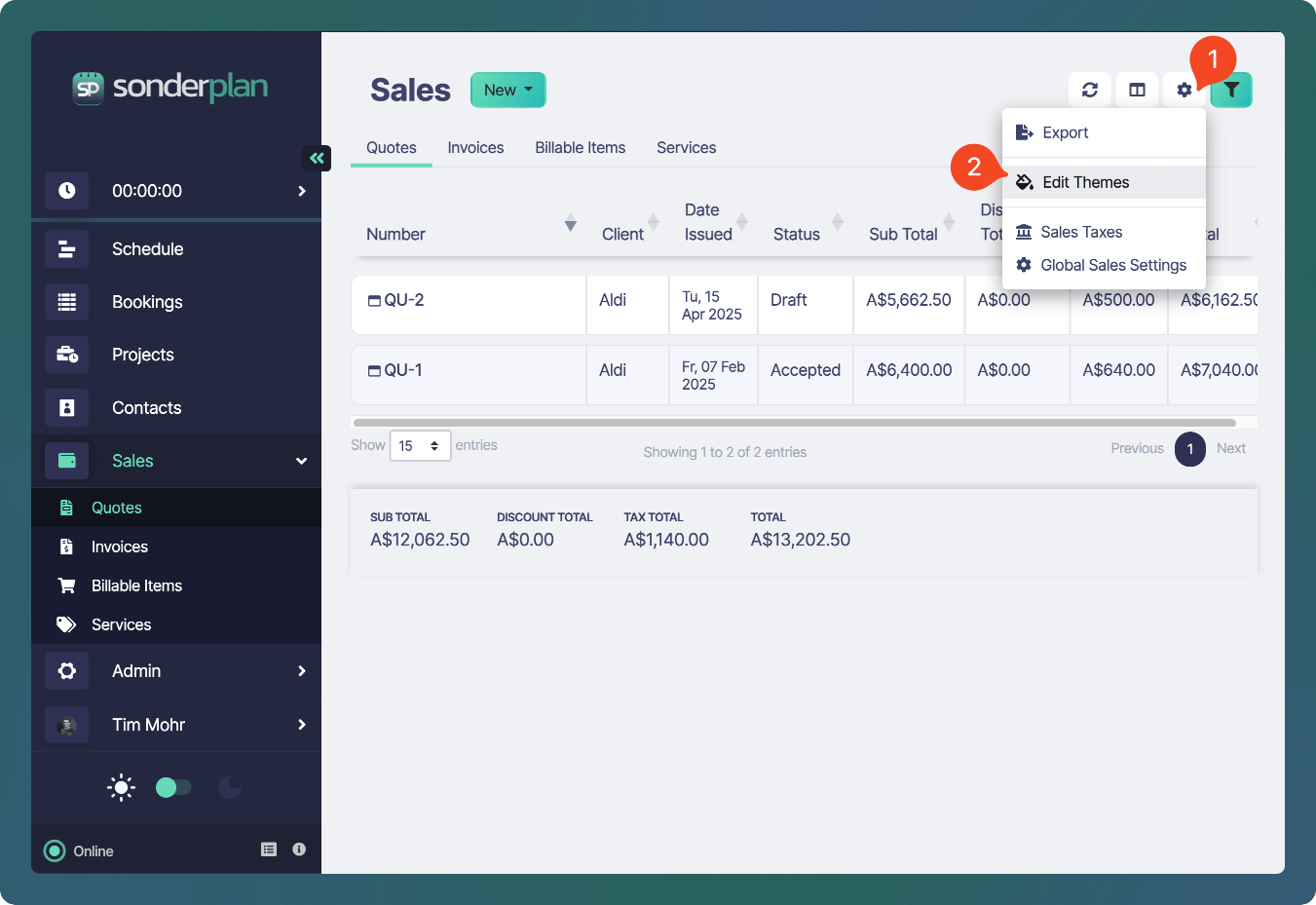
To open the editor, in the top right corner of the **Sales** page, **click** the ** -> Edit Themes**.
From this point, we'll mostly talk about **invoice themes**, however quote templates are almost identical!
To open the editor, in the top right corner of the **Sales** page, **click** the ** -> Edit Themes**.
 ## Create / Edit a Theme
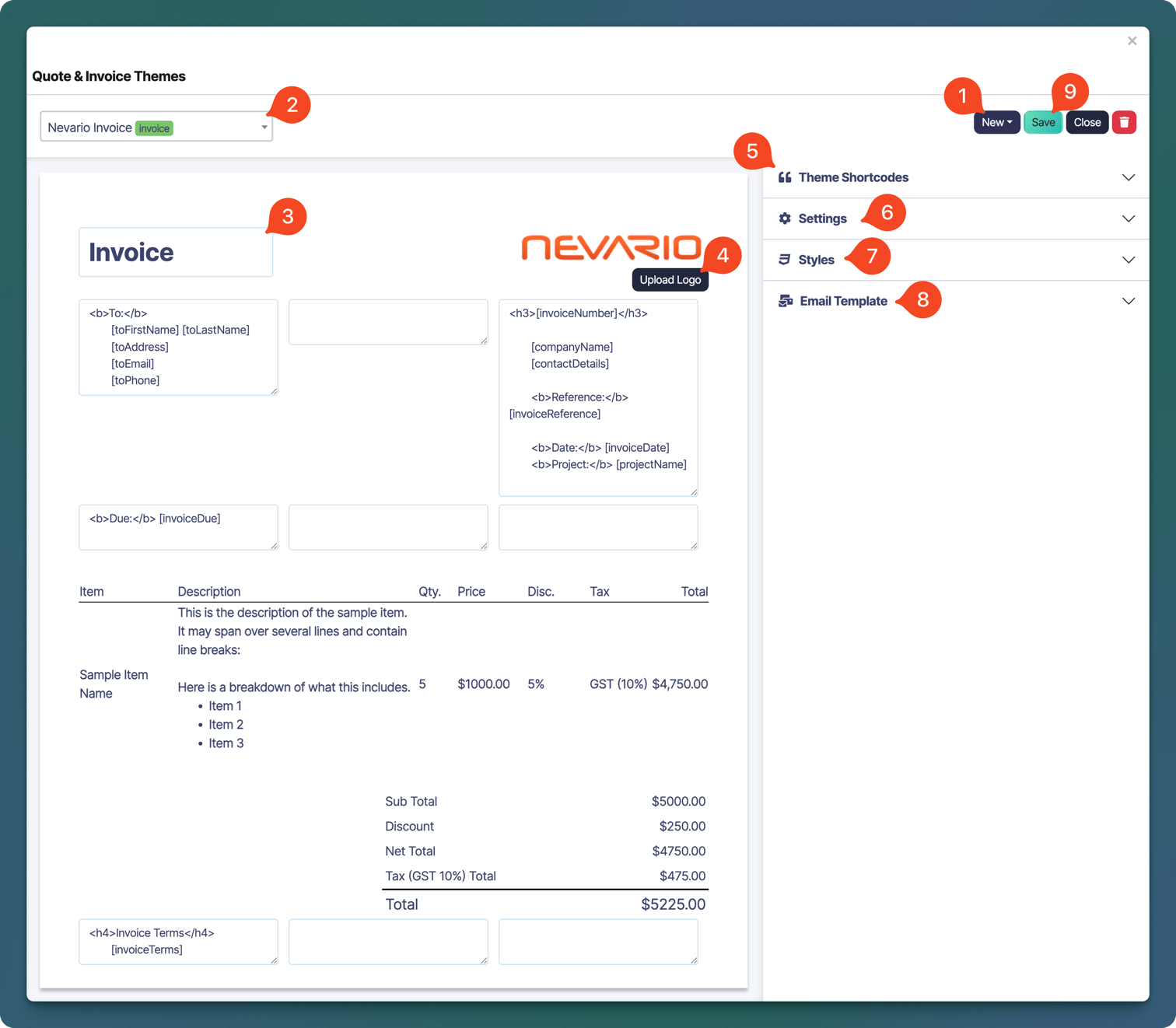
The theme editor is a representation of the final invoice output. The page is broken into 9 sections which can have text and HTML elements added to them. When creating a new theme, the system default theme is loaded in by default, but you can add and modify any of the Shortcodes that you require.
## Create / Edit a Theme
The theme editor is a representation of the final invoice output. The page is broken into 9 sections which can have text and HTML elements added to them. When creating a new theme, the system default theme is loaded in by default, but you can add and modify any of the Shortcodes that you require.
 ### New Theme Button
To create a new theme, click on the **New** (1) button and select either **New Quote Theme** or **New Invoice Theme**. This action will open an editable template based off the default themes, allowing you to fully customize the layout, content, and styling according to your needs.
### Theme Name
Enter a clear and descriptive theme name (2) for internal use only. These names help your team quickly identify the purpose or style of each theme but will not be displayed on the final document sent to clients. For instance, you could use theme names like Company Name — 30 Day Terms or Premium Client Invoice.
### Invoice Title
Specify the title (3) you want to appear prominently at the top of your invoice or quote. Examples include Invoice, Tax Invoice, or Quotation. This is visible on the final document delivered to your client.
### Upload Logo
You can brand your invoices by uploading your company logo. Simply click on the **Upload Logo** (4) button, select your logo file from your device, and it will appear automatically on all invoices generated using this theme.
### Shortcodes
Shortcodes displayed in the right sidebar (5) represent dynamic placeholders that are automatically replaced with relevant details when generating your invoice or quote. For example, shortcodes such as `[invoiceNumber]` or `[companyName]` are replaced by the actual invoice number and your company's name. If there's no data available for a shortcode at the time of generation, that shortcode will be left blank.
#### Dynamic Client / Contact
***
| Shortcode | Description |
| --------------------- | ------------------------------------------------------------------------------------------------------------------------------------------------------------------- |
| `[toFirstName]` | Client contact person’s first name — if no contact person is set, falls back to the client’s first name (for a person) or company name (for an organization) |
| `[toLastName]` | Client contact person’s last name — if no contact person is set, falls back to the client’s last name (for a person) or is left blank (for an organization) |
| `[toOrganization]` | Client contact person’s linked organization name — if no contact person is set, falls back to the client’s linked organization name (for a person) or is left blank |
| `[toAddress]` | The complete address of the client |
| `[toAddressLine1]` | The first line of the client’s address |
| `[toAddressLine2]` | The second line of the client’s address |
| `[toAddressLine3]` | The third line of the client’s address |
| `[toAddressCity]` | The client’s city |
| `[toAddressState]` | The client’s state/province |
| `[toAddressPostcode]` | The client’s postcode/ZIP |
| `[toAddressCountry]` | The client’s country |
| `[toEmail]` | Email address of the client |
| `[toPhone]` | Phone number of the client |
#### Client
***
| Shortcode | Description |
| ----------------- | ------------------------------------ |
| `[clientName]` | The name of the client |
| `[clientAddress]` | Formatted address of the client |
| `[clientEmail1]` | Primary email of the client |
| `[clientEmail2]` | Secondary email of the client |
| `[clientEmail3]` | Tertiary email of the client |
| `[clientPhone1]` | Primary phone number of the client |
| `[clientPhone2]` | Secondary phone number of the client |
| `[clientPhone3]` | Tertiary phone number of the client |
#### Client Contact Person
***
| Shortcode | Description |
| ------------------------------ | -------------------------------------------- |
| `[clientContactPersonName]` | The name of the client contact person |
| `[clientContactPersonAddress]` | Formatted address of the contact person |
| `[clientContactPersonEmail1]` | Primary email of the contact person |
| `[clientContactPersonEmail2]` | Secondary email of the contact person |
| `[clientContactPersonEmail3]` | Tertiary email of the contact person |
| `[clientContactPersonPhone1]` | Primary phone number of the contact person |
| `[clientContactPersonPhone2]` | Secondary phone number of the contact person |
| `[clientContactPersonPhone3]` | Tertiary phone number of the contact person |
#### Invoice Fields
***
| Shortcode | Description |
| ------------------------ | ---------------------------------------------- |
| `[invoiceNumber]` | Number of the invoice |
| `[invoiceTotal]` | Total amount of the invoice |
| `[invoiceSubTotal]` | Sub‑Total amount of the invoice |
| `[invoiceDiscountTotal]` | Discount total amount of the invoice |
| `[invoiceNetTotal]` | Net Total amount of the invoice |
| `[invoiceTaxTotal]` | Total Tax amount of the invoice |
| `[invoiceDate]` | Date the invoice was created |
| `[invoiceDue]` | Due date of the invoice |
| `[invoiceTerms]` | The invoice terms specified within the invoice |
| `[invoiceReference]` | The invoice reference field value |
| `[companyName]` | Your company name (from System Settings) |
| `[contactDetails]` | Contact details (from Global Sales Settings) |
#### Project Fields
***
| Shortcode | Description |
| ---------------------- | -------------------------------------- |
| `[projectName]` | Name of the Project |
| `[projectCode]` | Shortcode assigned to the Project |
| `[projectDescription]` | Description of the Project |
| `[projectStartDate]` | The start date defined for the project |
| `[projectEndDate]` | The end date defined for the project |
### Invoice Settings
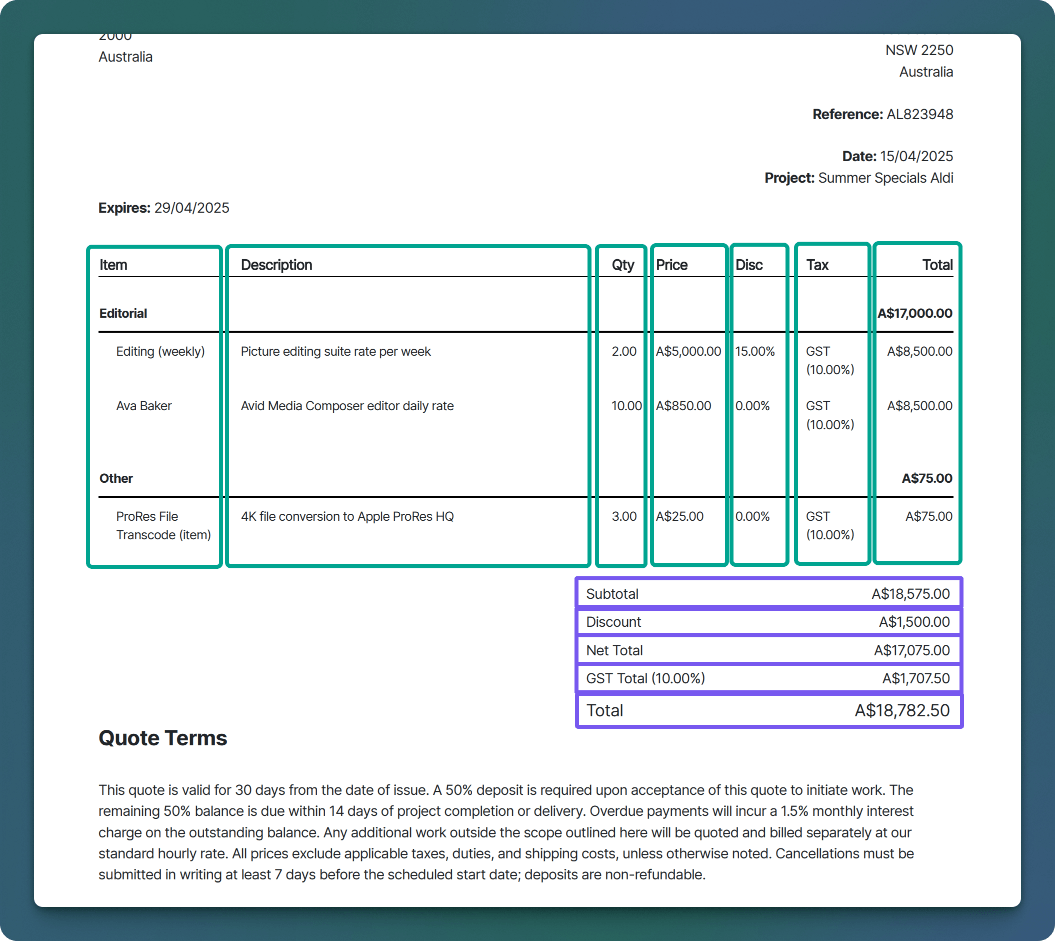
Customize your invoice layout by choosing which item columns or total row elements to display or hide (6). This allows you to create tailored invoices suitable for different types of clients or projects, ensuring clarity and relevance in your financial communications.
### New Theme Button
To create a new theme, click on the **New** (1) button and select either **New Quote Theme** or **New Invoice Theme**. This action will open an editable template based off the default themes, allowing you to fully customize the layout, content, and styling according to your needs.
### Theme Name
Enter a clear and descriptive theme name (2) for internal use only. These names help your team quickly identify the purpose or style of each theme but will not be displayed on the final document sent to clients. For instance, you could use theme names like Company Name — 30 Day Terms or Premium Client Invoice.
### Invoice Title
Specify the title (3) you want to appear prominently at the top of your invoice or quote. Examples include Invoice, Tax Invoice, or Quotation. This is visible on the final document delivered to your client.
### Upload Logo
You can brand your invoices by uploading your company logo. Simply click on the **Upload Logo** (4) button, select your logo file from your device, and it will appear automatically on all invoices generated using this theme.
### Shortcodes
Shortcodes displayed in the right sidebar (5) represent dynamic placeholders that are automatically replaced with relevant details when generating your invoice or quote. For example, shortcodes such as `[invoiceNumber]` or `[companyName]` are replaced by the actual invoice number and your company's name. If there's no data available for a shortcode at the time of generation, that shortcode will be left blank.
#### Dynamic Client / Contact
***
| Shortcode | Description |
| --------------------- | ------------------------------------------------------------------------------------------------------------------------------------------------------------------- |
| `[toFirstName]` | Client contact person’s first name — if no contact person is set, falls back to the client’s first name (for a person) or company name (for an organization) |
| `[toLastName]` | Client contact person’s last name — if no contact person is set, falls back to the client’s last name (for a person) or is left blank (for an organization) |
| `[toOrganization]` | Client contact person’s linked organization name — if no contact person is set, falls back to the client’s linked organization name (for a person) or is left blank |
| `[toAddress]` | The complete address of the client |
| `[toAddressLine1]` | The first line of the client’s address |
| `[toAddressLine2]` | The second line of the client’s address |
| `[toAddressLine3]` | The third line of the client’s address |
| `[toAddressCity]` | The client’s city |
| `[toAddressState]` | The client’s state/province |
| `[toAddressPostcode]` | The client’s postcode/ZIP |
| `[toAddressCountry]` | The client’s country |
| `[toEmail]` | Email address of the client |
| `[toPhone]` | Phone number of the client |
#### Client
***
| Shortcode | Description |
| ----------------- | ------------------------------------ |
| `[clientName]` | The name of the client |
| `[clientAddress]` | Formatted address of the client |
| `[clientEmail1]` | Primary email of the client |
| `[clientEmail2]` | Secondary email of the client |
| `[clientEmail3]` | Tertiary email of the client |
| `[clientPhone1]` | Primary phone number of the client |
| `[clientPhone2]` | Secondary phone number of the client |
| `[clientPhone3]` | Tertiary phone number of the client |
#### Client Contact Person
***
| Shortcode | Description |
| ------------------------------ | -------------------------------------------- |
| `[clientContactPersonName]` | The name of the client contact person |
| `[clientContactPersonAddress]` | Formatted address of the contact person |
| `[clientContactPersonEmail1]` | Primary email of the contact person |
| `[clientContactPersonEmail2]` | Secondary email of the contact person |
| `[clientContactPersonEmail3]` | Tertiary email of the contact person |
| `[clientContactPersonPhone1]` | Primary phone number of the contact person |
| `[clientContactPersonPhone2]` | Secondary phone number of the contact person |
| `[clientContactPersonPhone3]` | Tertiary phone number of the contact person |
#### Invoice Fields
***
| Shortcode | Description |
| ------------------------ | ---------------------------------------------- |
| `[invoiceNumber]` | Number of the invoice |
| `[invoiceTotal]` | Total amount of the invoice |
| `[invoiceSubTotal]` | Sub‑Total amount of the invoice |
| `[invoiceDiscountTotal]` | Discount total amount of the invoice |
| `[invoiceNetTotal]` | Net Total amount of the invoice |
| `[invoiceTaxTotal]` | Total Tax amount of the invoice |
| `[invoiceDate]` | Date the invoice was created |
| `[invoiceDue]` | Due date of the invoice |
| `[invoiceTerms]` | The invoice terms specified within the invoice |
| `[invoiceReference]` | The invoice reference field value |
| `[companyName]` | Your company name (from System Settings) |
| `[contactDetails]` | Contact details (from Global Sales Settings) |
#### Project Fields
***
| Shortcode | Description |
| ---------------------- | -------------------------------------- |
| `[projectName]` | Name of the Project |
| `[projectCode]` | Shortcode assigned to the Project |
| `[projectDescription]` | Description of the Project |
| `[projectStartDate]` | The start date defined for the project |
| `[projectEndDate]` | The end date defined for the project |
### Invoice Settings
Customize your invoice layout by choosing which item columns or total row elements to display or hide (6). This allows you to create tailored invoices suitable for different types of clients or projects, ensuring clarity and relevance in your financial communications.
 #### Item Column Visibility
***
| Setting | Description |
| ----------- | ------------------------------------------------------ |
| Item | Show or hide the Item column in the line items. |
| Description | Show or hide the Description column in the line items. |
| Quantity | Show or hide the Quantity column in the line items. |
| Price | Show or hide the Price column in the line items. |
| Discount | Show or hide the Discount column in the line items. |
| Tax | Show or hide the Tax column in the line items. |
| Total | Show or hide the Total column in the line items. |
#### Total Row Visibility
***
| Setting | Description |
| -------------- | ---------------------------------------------------------- |
| Sub Total | Show or hide the Sub Total row in the totals section. |
| Discount Total | Show or hide the Discount Total row in the totals section. |
| Net Total | Show or hide the Net Total row in the totals section. |
| Tax Total | Show or hide the Tax Total row in the totals section. |
| Total | Show or hide the Total row in the totals section. |
### Styles
Use custom CSS code (7) to personalize the appearance of your invoice or quote templates fully. This powerful feature lets you adjust fonts, colors, layout spacing, and more, ensuring your documents reflect your brand identity precisely.
#### Item Column Visibility
***
| Setting | Description |
| ----------- | ------------------------------------------------------ |
| Item | Show or hide the Item column in the line items. |
| Description | Show or hide the Description column in the line items. |
| Quantity | Show or hide the Quantity column in the line items. |
| Price | Show or hide the Price column in the line items. |
| Discount | Show or hide the Discount column in the line items. |
| Tax | Show or hide the Tax column in the line items. |
| Total | Show or hide the Total column in the line items. |
#### Total Row Visibility
***
| Setting | Description |
| -------------- | ---------------------------------------------------------- |
| Sub Total | Show or hide the Sub Total row in the totals section. |
| Discount Total | Show or hide the Discount Total row in the totals section. |
| Net Total | Show or hide the Net Total row in the totals section. |
| Tax Total | Show or hide the Tax Total row in the totals section. |
| Total | Show or hide the Total row in the totals section. |
### Styles
Use custom CSS code (7) to personalize the appearance of your invoice or quote templates fully. This powerful feature lets you adjust fonts, colors, layout spacing, and more, ensuring your documents reflect your brand identity precisely.
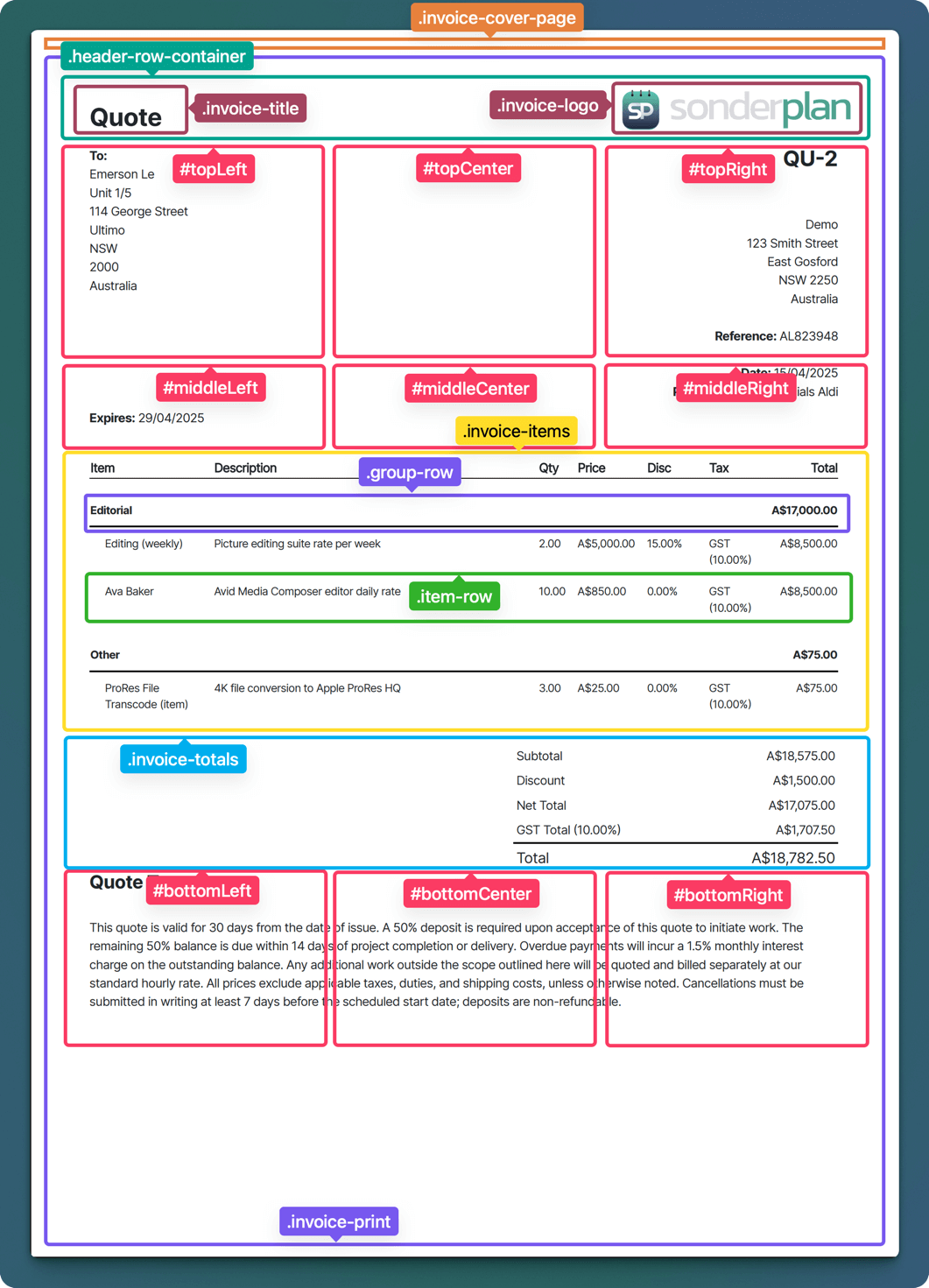 #### Custom Page Footer
A customised footer can be embedded on each page by creating an image file with the dimensions of `120px x 738px`.
The image should be exported as `Footer.png` and then converted to a `base64` string by running the following commands in Terminal on a Mac computer.
```bash Convert png to base64 theme={null}
echo "data:image/png;base64,$(base64 -i Footer.png)" > output.txt
```
Next, copy and paste the `CSS` code into the `Custom CSS Code` section in the Sonderplan invoice theme editor. Finally open the newly created `output.txt` file generated by the above `base64` commands and copy the contents into the `background: url("");` code section.
```css Page footer example icon="css" theme={null}
@media print {
@page {
margin-bottom: 130px!important;
@bottom-center {
height: 120px;
width: 738px;
content: "";
background: url("data:image/png;base64,i.....");
background-size: contain;
}
}
}
```
### Email Template
(8) Predefine the email content and subject lines used when sending invoices through the built-in Send Invoice function. Creating standard email templates helps maintain consistency, enhances professionalism, and speeds up your invoicing process.
### Save
Once you've customized your theme, click the **Save** (9) button to store your changes. This ensures your template settings, styling, and customizations are preserved and ready for future use.\`
#### Custom Page Footer
A customised footer can be embedded on each page by creating an image file with the dimensions of `120px x 738px`.
The image should be exported as `Footer.png` and then converted to a `base64` string by running the following commands in Terminal on a Mac computer.
```bash Convert png to base64 theme={null}
echo "data:image/png;base64,$(base64 -i Footer.png)" > output.txt
```
Next, copy and paste the `CSS` code into the `Custom CSS Code` section in the Sonderplan invoice theme editor. Finally open the newly created `output.txt` file generated by the above `base64` commands and copy the contents into the `background: url("");` code section.
```css Page footer example icon="css" theme={null}
@media print {
@page {
margin-bottom: 130px!important;
@bottom-center {
height: 120px;
width: 738px;
content: "";
background: url("data:image/png;base64,i.....");
background-size: contain;
}
}
}
```
### Email Template
(8) Predefine the email content and subject lines used when sending invoices through the built-in Send Invoice function. Creating standard email templates helps maintain consistency, enhances professionalism, and speeds up your invoicing process.
### Save
Once you've customized your theme, click the **Save** (9) button to store your changes. This ensures your template settings, styling, and customizations are preserved and ready for future use.\`