> ## Documentation Index
> Fetch the complete documentation index at: https://docs.sonderplan.com/llms.txt
> Use this file to discover all available pages before exploring further.
# Resources
> Manage and organize bookable resources such as rooms, equipment, and personnel to streamline scheduling and maximize utilization.
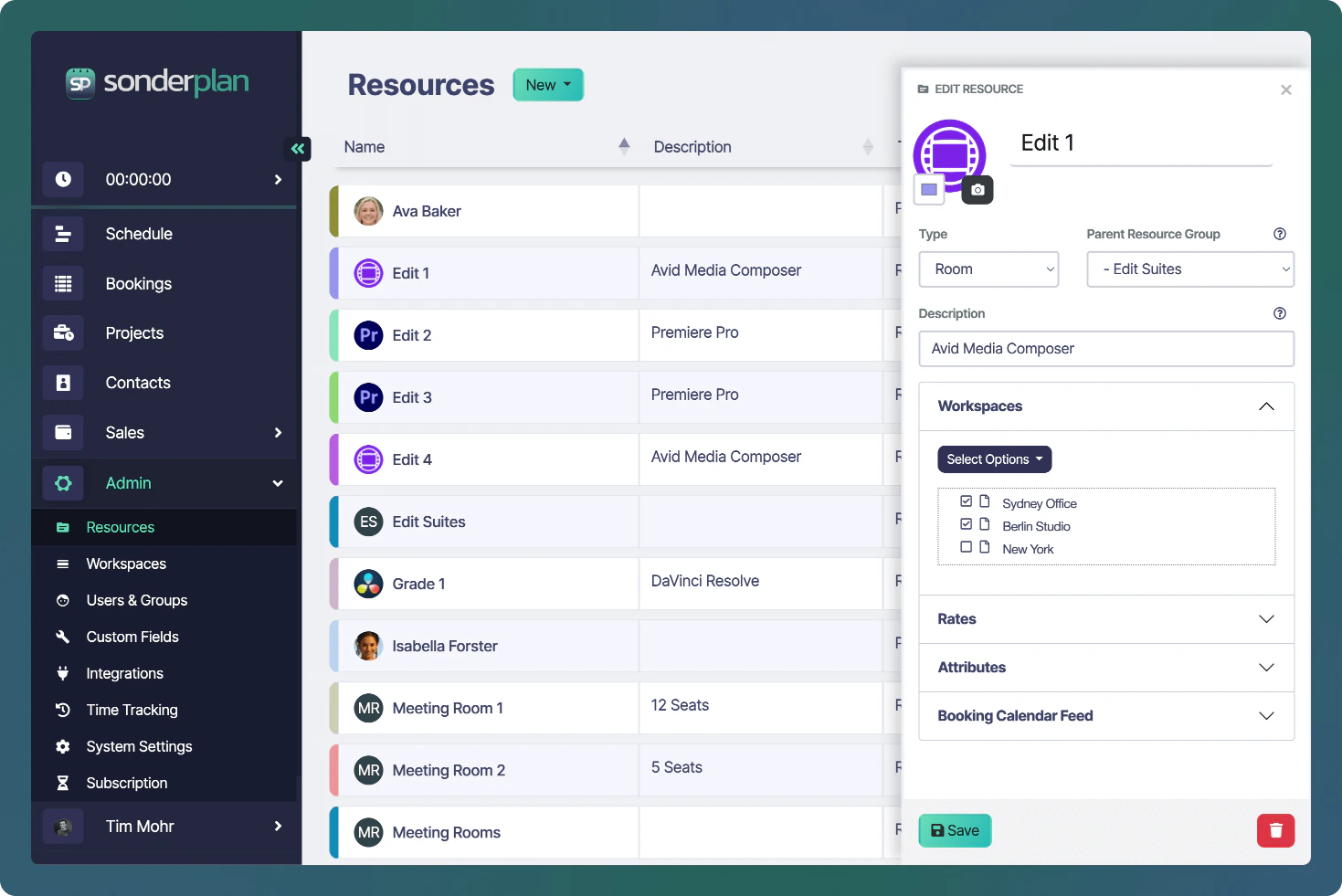
In Sonderplan, Resources are the individual assets, spaces, people, and actions that you can book or track. Every booking refers to one or more Resources, and grouping them logically helps keep your calendars organized and ensures the right items are available to the right teams.
You can manage Resources by navigating to **Admin → Resources** in the sidebar, where you’ll find a list of all existing items and controls to create, edit, or delete them.
 ## Types of Resources
### People
Living and breathing, these “human resources” drive your projects and studio operations. Each person must be created as Contact before being created as a Resource. Once added, you can assign them to Workspaces, set rates, or track their availability just like any other asset.
### Rooms
The default Resource type, Rooms represent physical spaces you book:
* Edit Suites (e.g. Edit 1, Edit 2…)
* Meeting Rooms
* Studios
* Any other dedicated space (green rooms, screening rooms, etc.)
Rooms let you define capacity, working hours, and which Workspaces they belong to.
### Equipment
Any tangible item that can be reserved or that you’d like to track inventory for:
* Cameras
* Laptops and workstations
* Audio recorders, lighting kits
* Props, rigs, or other production hardware
In a future release, Equipment Resources will include built-in inventory management—purchase dates, warranty details, and stock levels.
### Action Resources
These are non-physical entries used to represent common staff activities or statuses in your schedule:
* Sick Leave
* Holidays
* Training Sessions
* Administrative Tasks
Action Resources appear in the Schedule just like any other Resource, allowing you to block off time or record internal activities without tying up physical rooms or equipment.
## Creating a New Resource
If you are using Sonderplan on a **Flexible Billing** plan, creating resources will result in **additional charges** (calculated pro rata) being automatically charged to your credit card.
Click the **New** dropdown menu button and click **Resource** if you wish to create a **Room**, **Equipment** or **Action** resource.
## Types of Resources
### People
Living and breathing, these “human resources” drive your projects and studio operations. Each person must be created as Contact before being created as a Resource. Once added, you can assign them to Workspaces, set rates, or track their availability just like any other asset.
### Rooms
The default Resource type, Rooms represent physical spaces you book:
* Edit Suites (e.g. Edit 1, Edit 2…)
* Meeting Rooms
* Studios
* Any other dedicated space (green rooms, screening rooms, etc.)
Rooms let you define capacity, working hours, and which Workspaces they belong to.
### Equipment
Any tangible item that can be reserved or that you’d like to track inventory for:
* Cameras
* Laptops and workstations
* Audio recorders, lighting kits
* Props, rigs, or other production hardware
In a future release, Equipment Resources will include built-in inventory management—purchase dates, warranty details, and stock levels.
### Action Resources
These are non-physical entries used to represent common staff activities or statuses in your schedule:
* Sick Leave
* Holidays
* Training Sessions
* Administrative Tasks
Action Resources appear in the Schedule just like any other Resource, allowing you to block off time or record internal activities without tying up physical rooms or equipment.
## Creating a New Resource
If you are using Sonderplan on a **Flexible Billing** plan, creating resources will result in **additional charges** (calculated pro rata) being automatically charged to your credit card.
Click the **New** dropdown menu button and click **Resource** if you wish to create a **Room**, **Equipment** or **Action** resource.
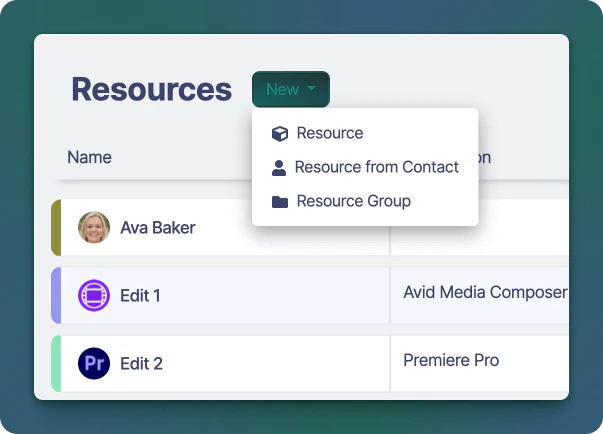 If you wish to create a **Person** resource, click **Resource from Contact**.
Or click **Resource Group** if you want to create a new group to organise similar resources together.
### People Resources
In the **New Resource** sidebar editor
If you wish to create a **Person** resource, click **Resource from Contact**.
Or click **Resource Group** if you want to create a new group to organise similar resources together.
### People Resources
In the **New Resource** sidebar editor
 1. Select an existing **Contact** who should be added as a resource
2. Alternatively, you can click the **New Contact** button which will allow you to create a new contact immediately
1. Select an existing **Contact** who should be added as a resource
2. Alternatively, you can click the **New Contact** button which will allow you to create a new contact immediately
 3. Select a **Colour** for the resource. Bookings with this resource added will take this colour on.
4. Select a **Parent Resource Group** (optional) if you want to nest the resource with other similar ones
5. Enter an optional **Description** that will be shown on the Schedule
6. Expand the **Workspace** section and click the checkbox next to any workspace you wish to add this resource to
7. Enter a **Rate** for this resource (see section below)
8. Resource attributes (coming soon)
9. Open the **Booking Calendar Feed** section to create a resource feed (once the booking has been saved)
### Room, Equipment and Actions
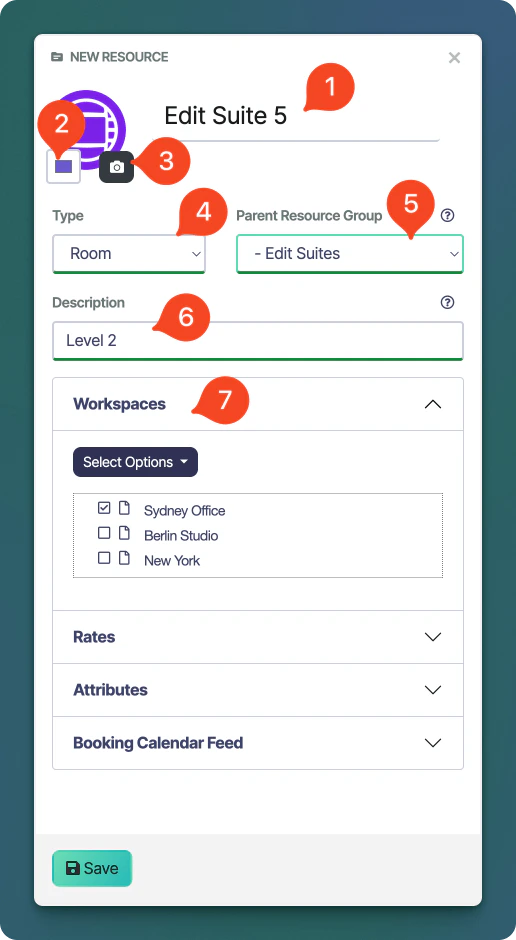
In the **New Resource** sidebar editor:
1. Enter a **Name** of the resource
2. Select a **Colour** for the resource. Bookings with this resource added will take this colour on.
3. Select an **Icon** which is shown on the Schedule resource timeline.
4. Select the **Type** of the resource as either *Room*, *Equipment* or *Action*
5. Select a **Parent Resource Group** (optional) if you want to nest the resource with other similar ones
6. Enter an optional **Description** that will be shown on the Schedule
7. Expand the **Workspace** section and click the checkbox next to any workspace you wish to add this resource to
3. Select a **Colour** for the resource. Bookings with this resource added will take this colour on.
4. Select a **Parent Resource Group** (optional) if you want to nest the resource with other similar ones
5. Enter an optional **Description** that will be shown on the Schedule
6. Expand the **Workspace** section and click the checkbox next to any workspace you wish to add this resource to
7. Enter a **Rate** for this resource (see section below)
8. Resource attributes (coming soon)
9. Open the **Booking Calendar Feed** section to create a resource feed (once the booking has been saved)
### Room, Equipment and Actions
In the **New Resource** sidebar editor:
1. Enter a **Name** of the resource
2. Select a **Colour** for the resource. Bookings with this resource added will take this colour on.
3. Select an **Icon** which is shown on the Schedule resource timeline.
4. Select the **Type** of the resource as either *Room*, *Equipment* or *Action*
5. Select a **Parent Resource Group** (optional) if you want to nest the resource with other similar ones
6. Enter an optional **Description** that will be shown on the Schedule
7. Expand the **Workspace** section and click the checkbox next to any workspace you wish to add this resource to
 ## Editing a Resource
In the Resources list, click the name of the resource name (or edit icon) for the Resource you wish to change.
Make any changes to the resource, when finished, click **Save** to apply your changes.
## Deleting a Resource
If you're using Sonderplan with a **Flexible Billing** plan, deleting resources will generate unused time credits for the user. These credits will be automatically applied to your account and used toward future invoices.
Open the Resource’s edit panel as above.
At the bottom-left of the panel, click the **** button. Confirm the deletion in the prompt.
The Resource will be removed from the list immediately. The deleted resource will be kept on bookings, but marked as `(deleted)`.
## Editing a Resource
In the Resources list, click the name of the resource name (or edit icon) for the Resource you wish to change.
Make any changes to the resource, when finished, click **Save** to apply your changes.
## Deleting a Resource
If you're using Sonderplan with a **Flexible Billing** plan, deleting resources will generate unused time credits for the user. These credits will be automatically applied to your account and used toward future invoices.
Open the Resource’s edit panel as above.
At the bottom-left of the panel, click the **** button. Confirm the deletion in the prompt.
The Resource will be removed from the list immediately. The deleted resource will be kept on bookings, but marked as `(deleted)`.