> ## Documentation Index
> Fetch the complete documentation index at: https://docs.sonderplan.com/llms.txt
> Use this file to discover all available pages before exploring further.
# Users & Groups
> Invite your team, manage group access roles, and monitor user sessions
The Users & Groups page in Sonderplan lets you manage who can access your system, how they authenticate, and which set of permissions they inherit via Groups. Use this page to onboard new team members, organize them into logical units, and monitor active sessions.
 ## Users
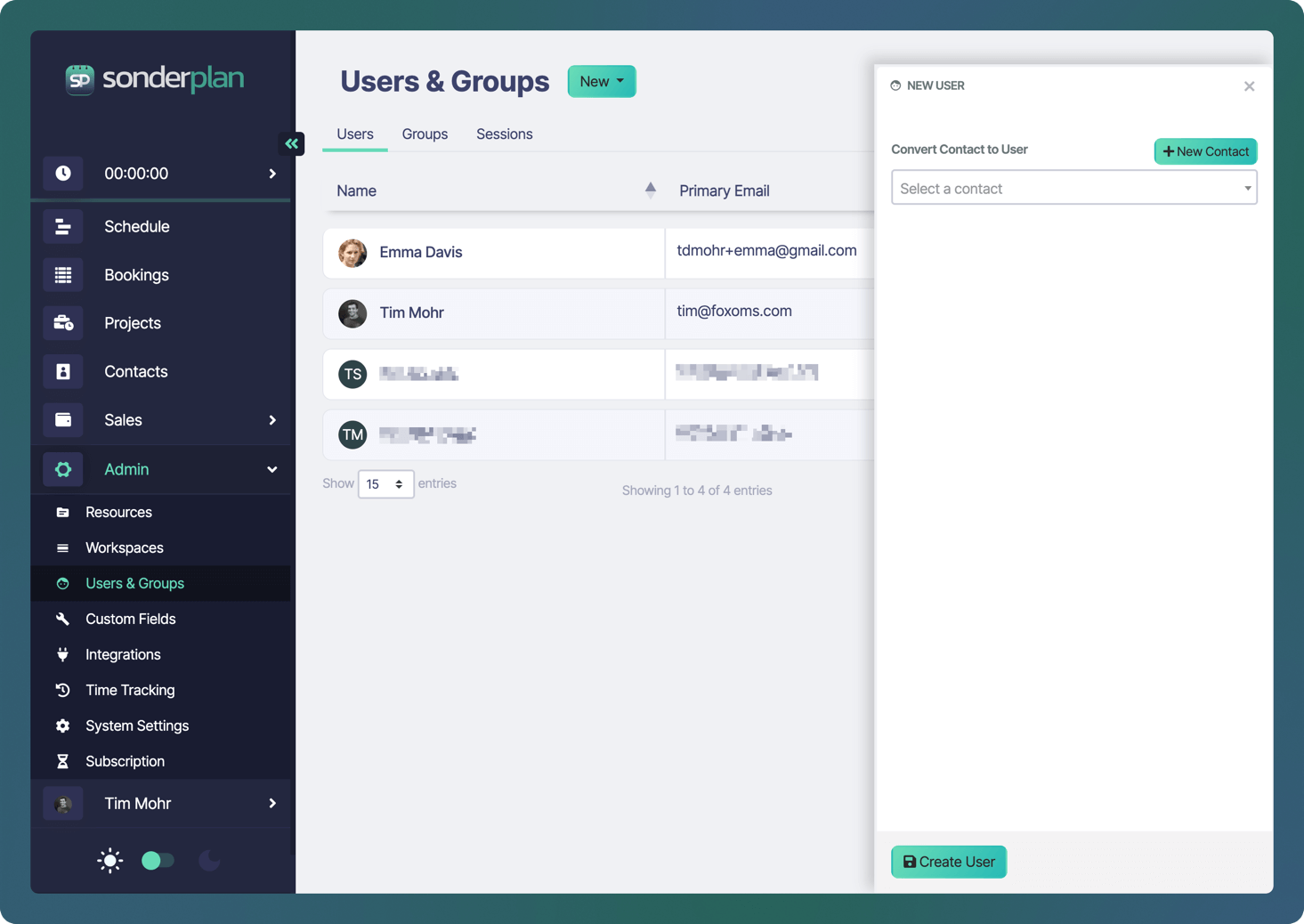
The Users tab shows every user account that can log into Sonderplan.
### Creating & Editing a User
If you are using Sonderplan on a **Flexible Billing** plan, creating users will result in **additional charges** (calculated pro rata) being automatically charged to your credit card.
Next to the *Users & Groups* heading, click the **New** button and choose **User** in the drop-down menu.
In the **New User** editing sidebar, either
* **Select an existing Contact** in the selection menu that you wish to give login access to Sonderplan
* Click **New Contact** to create a new contact that will also be added as a User to Sonderplan
Once a contact has been selected, additional inputs are shown (see below).
#### Primary Email Warning
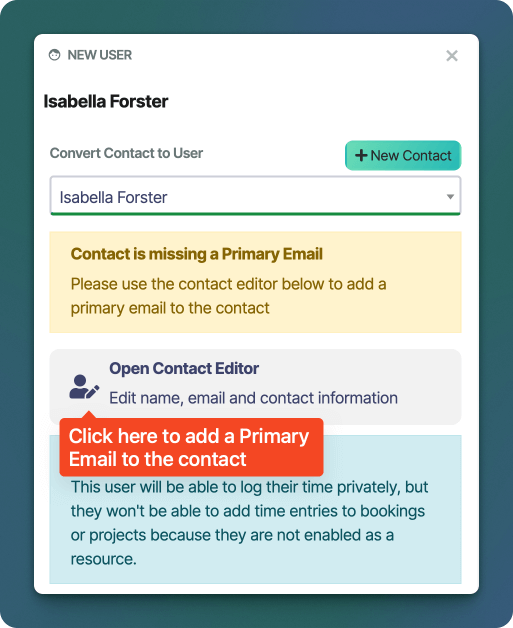
Users require a **Primary Email** to be set before they can be created. To set a primary email click on the **Open Contact Editor** link or button, which will open the Contact Editor.
## Users
The Users tab shows every user account that can log into Sonderplan.
### Creating & Editing a User
If you are using Sonderplan on a **Flexible Billing** plan, creating users will result in **additional charges** (calculated pro rata) being automatically charged to your credit card.
Next to the *Users & Groups* heading, click the **New** button and choose **User** in the drop-down menu.
In the **New User** editing sidebar, either
* **Select an existing Contact** in the selection menu that you wish to give login access to Sonderplan
* Click **New Contact** to create a new contact that will also be added as a User to Sonderplan
Once a contact has been selected, additional inputs are shown (see below).
#### Primary Email Warning
Users require a **Primary Email** to be set before they can be created. To set a primary email click on the **Open Contact Editor** link or button, which will open the Contact Editor.
 #### Time Logging Limited Warning
A **Time Logging Limited** warning will be shown if the user is not also added as a **Resource**. This user will be able to log their time privately, but they won't be able to add time entries to bookings or projects until they are enabled as a resource.
#### Send Reset Password Email
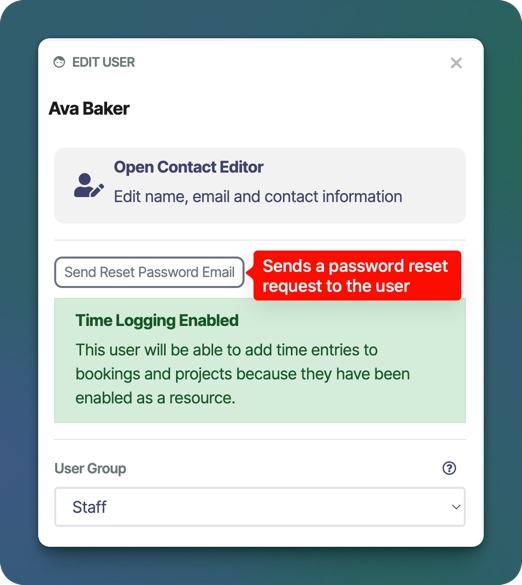
The **“Send Reset Password Email”** action allows administrators to trigger a password reset for a user directly from the **Admin → Users → Edit User** screen.
When clicked, Sonderplan sends an email to the user containing a secure, time-limited link that allows them to set a new password.
#### Time Logging Limited Warning
A **Time Logging Limited** warning will be shown if the user is not also added as a **Resource**. This user will be able to log their time privately, but they won't be able to add time entries to bookings or projects until they are enabled as a resource.
#### Send Reset Password Email
The **“Send Reset Password Email”** action allows administrators to trigger a password reset for a user directly from the **Admin → Users → Edit User** screen.
When clicked, Sonderplan sends an email to the user containing a secure, time-limited link that allows them to set a new password.
 ##### When to use this
* A user has forgotten their password
* A new user has been created but has not yet set their password
* You need to prompt a user to update their credentials for security reasons
##### How it works
* The system generates a unique reset token
* An email is sent to the user’s registered email address
* The user follows the link and sets a new password
* The token expires after a short period for security
##### Notes
* Clicking the button will open a modal, asking you to verify that you are a human
* If the user does not receive the email, ask them to check spam/junk folders
* Re-clicking the button will invalidate any previous reset links and issue a new one
#### User Group
Users derive their core module permissions from **User Groups**. The group selected can either be one of the default, *Staff, Administrator* or *Super Administrator* or can be a Custom Group.
#### SAML SSO Login
If you have configured [SAML SSO](/en/admin/saml-sso-settings), you can enable each user to use that login method.
#### Expiry Date
Each user can have an expiry date assigned, after which they will no longer be able to login to Sonderplan. This is particularly useful when you have temporary staff or contractors using the system.
### Deleting a User
If you're using Sonderplan with a **Flexible Billing** plan, deleting users will generate unused time credits for the user. These credits will be automatically applied to your account and used toward future invoices.
Open the User’s edit panel as above.
At the bottom-left of the panel, click the **** button. Confirm the deletion in the prompt.
## Groups
Groups let you bundle individual accounts into logical teams—so you can grant or revoke access to entire sets of features at once. Instead of assigning permissions one user at a time, you simply give a Group the right to view or edit specific modules (Schedule / Bookings, Projects, Contacts, and more) and any member of that Group automatically inherits those permissions.
### Default Groups
Sonderplan has 3 default groups setup which cover many common use cases.
| Module | Staff | Administrators | Super Administrators |
| ----------------------- | :---: | :------------: | :------------------: |
| Schedule / Bookings | RW | RW | RW |
| Projects | RW | RW | RW |
| Contacts | RW | RW | RW |
| Sales | -- | RW | RW |
| Administrator | -- | RW | RW |
| Subscription Management | -- | -- | RW |
\-- = No Access, R- = Read Only, RW = Read and Write
### Create & Edit a Group
If you wish to customise access you can create a **Custom Group**. If you are editing a group, click on the name of the group in the *Groups* datatable.
Only custom groups may be edited
Next to the *Users & Groups* heading, click the **New** button and choose **Group** in the drop-down menu. The *New Group* editor will open from the right side.
##### When to use this
* A user has forgotten their password
* A new user has been created but has not yet set their password
* You need to prompt a user to update their credentials for security reasons
##### How it works
* The system generates a unique reset token
* An email is sent to the user’s registered email address
* The user follows the link and sets a new password
* The token expires after a short period for security
##### Notes
* Clicking the button will open a modal, asking you to verify that you are a human
* If the user does not receive the email, ask them to check spam/junk folders
* Re-clicking the button will invalidate any previous reset links and issue a new one
#### User Group
Users derive their core module permissions from **User Groups**. The group selected can either be one of the default, *Staff, Administrator* or *Super Administrator* or can be a Custom Group.
#### SAML SSO Login
If you have configured [SAML SSO](/en/admin/saml-sso-settings), you can enable each user to use that login method.
#### Expiry Date
Each user can have an expiry date assigned, after which they will no longer be able to login to Sonderplan. This is particularly useful when you have temporary staff or contractors using the system.
### Deleting a User
If you're using Sonderplan with a **Flexible Billing** plan, deleting users will generate unused time credits for the user. These credits will be automatically applied to your account and used toward future invoices.
Open the User’s edit panel as above.
At the bottom-left of the panel, click the **** button. Confirm the deletion in the prompt.
## Groups
Groups let you bundle individual accounts into logical teams—so you can grant or revoke access to entire sets of features at once. Instead of assigning permissions one user at a time, you simply give a Group the right to view or edit specific modules (Schedule / Bookings, Projects, Contacts, and more) and any member of that Group automatically inherits those permissions.
### Default Groups
Sonderplan has 3 default groups setup which cover many common use cases.
| Module | Staff | Administrators | Super Administrators |
| ----------------------- | :---: | :------------: | :------------------: |
| Schedule / Bookings | RW | RW | RW |
| Projects | RW | RW | RW |
| Contacts | RW | RW | RW |
| Sales | -- | RW | RW |
| Administrator | -- | RW | RW |
| Subscription Management | -- | -- | RW |
\-- = No Access, R- = Read Only, RW = Read and Write
### Create & Edit a Group
If you wish to customise access you can create a **Custom Group**. If you are editing a group, click on the name of the group in the *Groups* datatable.
Only custom groups may be edited
Next to the *Users & Groups* heading, click the **New** button and choose **Group** in the drop-down menu. The *New Group* editor will open from the right side.
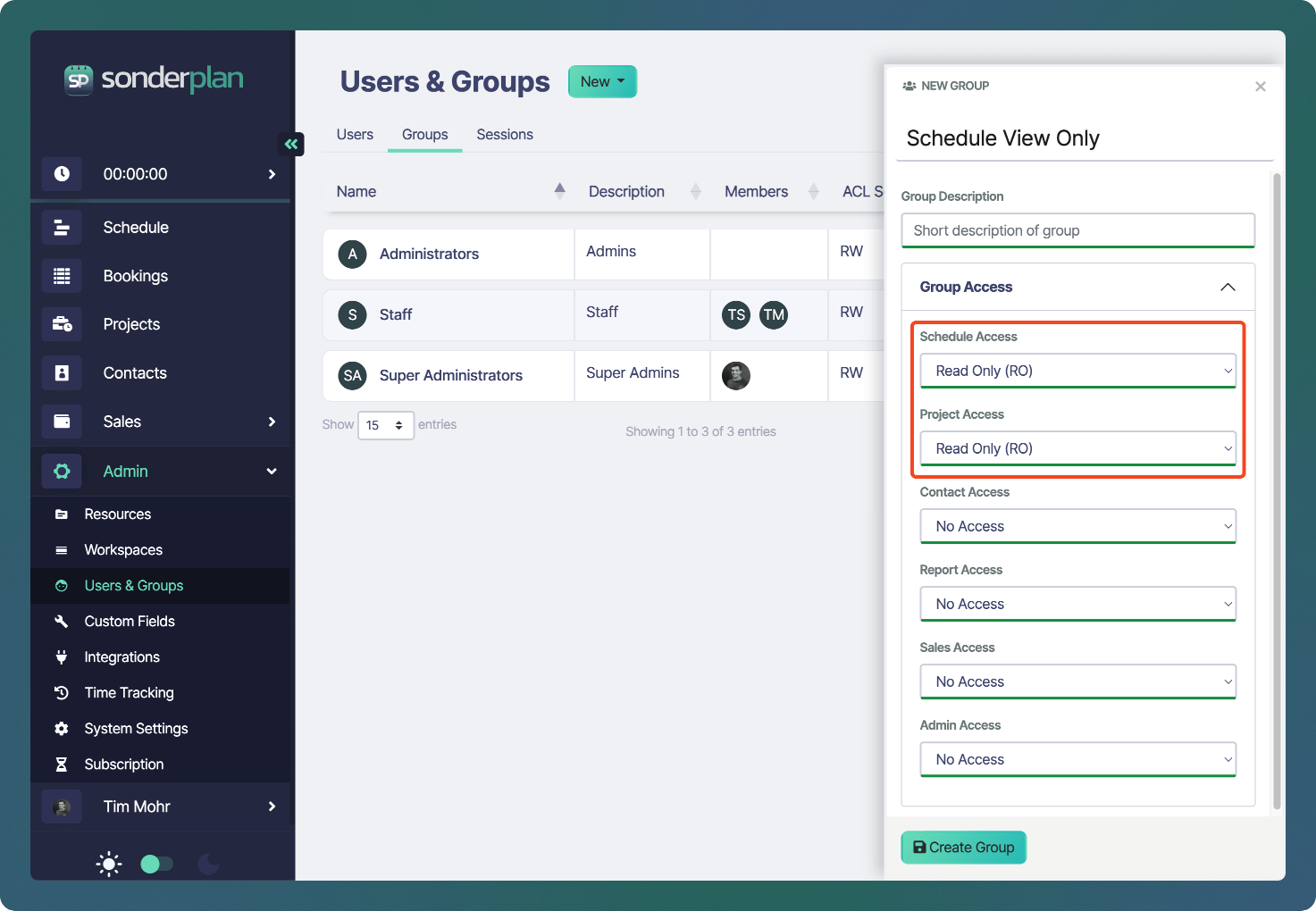 * Enter a **Group Name** and optional **Description** for the group.
* For each **Module**, select the level of access that each member of the group should have.
Finally click **Create Group** to create a new group, or **Save Changes** to save the existing group.
### Delete Group
Only custom groups may be deleted
Open the Groups’s edit panel as above.
At the bottom-left of the panel, click the **** button. Confirm the deletion in the prompt.
The group will be removed from the list immediately.
## Sessions
On the Sessions tab you can view and manage every active login across browsers and devices. For each session you’ll see the User name (and email), the originating IP Address, when they Signed In, and their Last Active timestamp.
If you need to immediately revoke access—for example if a device is lost or left unattended—click the red trash icon under Delete to terminate that session. Use the pagination controls and search field to locate specific sessions, and rest easy knowing you can instantly sign out any user from this single screen.
* Enter a **Group Name** and optional **Description** for the group.
* For each **Module**, select the level of access that each member of the group should have.
Finally click **Create Group** to create a new group, or **Save Changes** to save the existing group.
### Delete Group
Only custom groups may be deleted
Open the Groups’s edit panel as above.
At the bottom-left of the panel, click the **** button. Confirm the deletion in the prompt.
The group will be removed from the list immediately.
## Sessions
On the Sessions tab you can view and manage every active login across browsers and devices. For each session you’ll see the User name (and email), the originating IP Address, when they Signed In, and their Last Active timestamp.
If you need to immediately revoke access—for example if a device is lost or left unattended—click the red trash icon under Delete to terminate that session. Use the pagination controls and search field to locate specific sessions, and rest easy knowing you can instantly sign out any user from this single screen.