> ## Documentation Index
> Fetch the complete documentation index at: https://docs.sonderplan.com/llms.txt
> Use this file to discover all available pages before exploring further.
# Booking Basics
> Allocating time for your resources is simple, but there are a few tips and tricks that unlock the full capabilities of Sonderplan
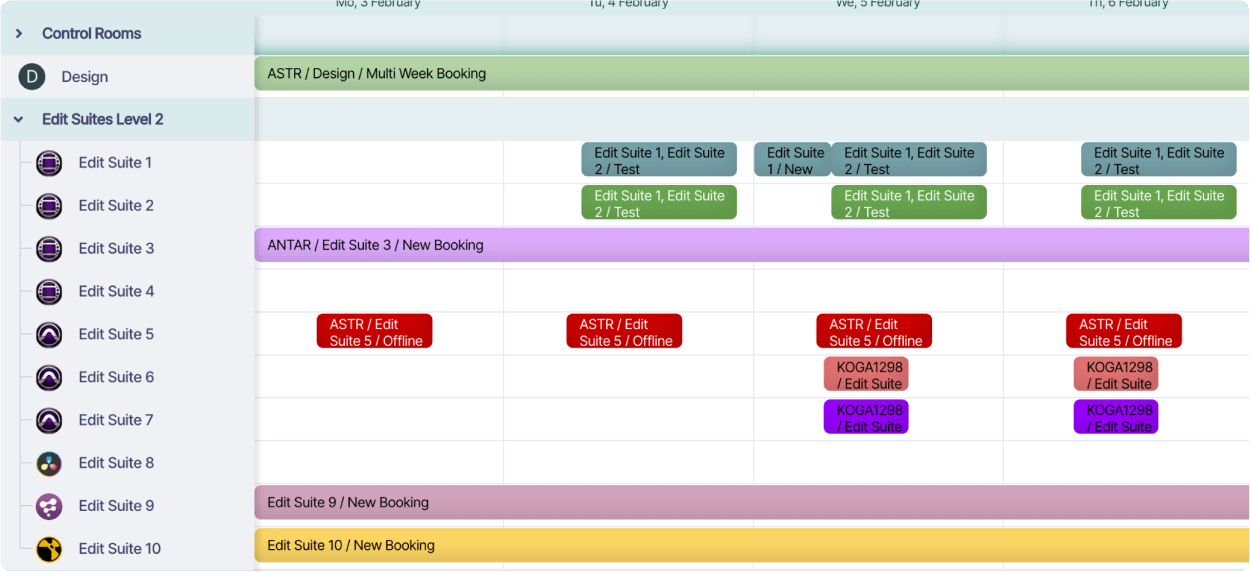
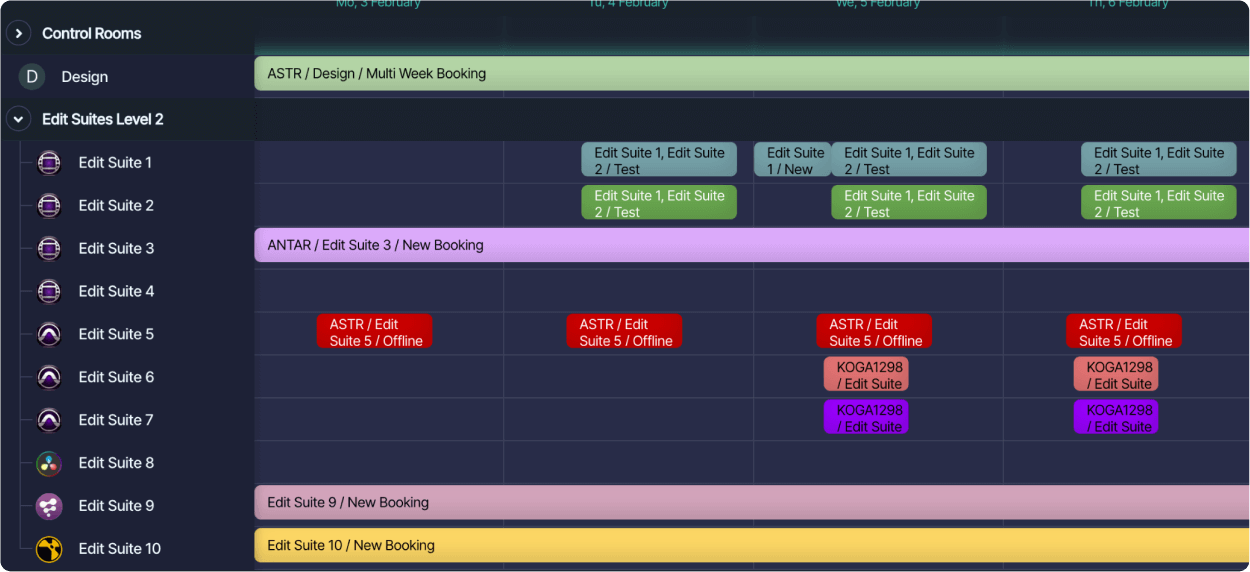 ## Booking Properties
Bookings always include a **name**, a **start date-time** and an **end date-time**. Additionally, bookings may include any of the following properties:
Supports one or multiple resources. Buy & sell rates can be set for each resource
Any time entries that were logged by resources directly to the booking
Used for project reporting and sets the client and client contact fields
Pulls through client contact info and used to prefill quotes / invoices
Customise booking stages with colour-coded statuses.
Adhoc items with buy & sell costs that are added to prefilled quotes / invoices
Details about the linked quotes & invoices generated from bookings
Files that are related to this booking can be uploaded and attached directly
Single, multi line, select menu and date picker input fields can be added to bookings
Details about who, changed what, including when they did it
## Creating a Booking
There are currently four main methods to create a new booking in Sonderplan, though the ability to create bookings may be limited by your [access permissions](/en/bookings/access-permissions). If you can't create a booking, and you think you should be able to, please contact your Sonderplan administrator.
### Resource Timeline
To create a booking on the resource timeline, open the schedule, find the desired *Resource* and hover your mouse over the desired start time and then **click & drag**, moving the mouse right until you reach the desired end time or duration, then release the mouse button.
It is also possible to select the end time first and then drag left to find the start time
## Booking Properties
Bookings always include a **name**, a **start date-time** and an **end date-time**. Additionally, bookings may include any of the following properties:
Supports one or multiple resources. Buy & sell rates can be set for each resource
Any time entries that were logged by resources directly to the booking
Used for project reporting and sets the client and client contact fields
Pulls through client contact info and used to prefill quotes / invoices
Customise booking stages with colour-coded statuses.
Adhoc items with buy & sell costs that are added to prefilled quotes / invoices
Details about the linked quotes & invoices generated from bookings
Files that are related to this booking can be uploaded and attached directly
Single, multi line, select menu and date picker input fields can be added to bookings
Details about who, changed what, including when they did it
## Creating a Booking
There are currently four main methods to create a new booking in Sonderplan, though the ability to create bookings may be limited by your [access permissions](/en/bookings/access-permissions). If you can't create a booking, and you think you should be able to, please contact your Sonderplan administrator.
### Resource Timeline
To create a booking on the resource timeline, open the schedule, find the desired *Resource* and hover your mouse over the desired start time and then **click & drag**, moving the mouse right until you reach the desired end time or duration, then release the mouse button.
It is also possible to select the end time first and then drag left to find the start time
The *Quick Edit* booking sidebar opens with the selected resource prefilled. Add additional resources, project, client etc. and click the **Save** button in the bottom left corner of the sidebar to create the booking.
### Project Timeline
To create a booking on the project timeline, open the schedule, select the Project Timeline, find the desired *Project* and hover your mouse over the desired start time and then **click & drag**, moving the mouse right until you reach the desired end time or duration, then release the mouse button.
The *Quick Edit* booking sidebar opens with the selected project prefilled. Add resources, client and notes etc. and then click the **Save** button in the bottom left corner of the sidebar to create the booking.
### Schedule Calendar
Open the Schedule Calendar to either the day, week or month view and either single click and drag the time, or double-click the cell to create a booking with the default duration.
The *Quick Edit* booking sidebar opens. Modify the preset time, add resources, project, client and notes etc. and then click the **Save** button in the bottom left corner of the sidebar to create the booking.
### Copy & Paste Booking
To create a booking from an existing booking, left single click an existing booking, then press ⌘ + cCtrl + c to copy the booking. Move the mouse pointer to another day and then ⌘ + vCtrl + v to paste the booking.
Alternatively, right single click and existing booking, click **Copy** and then right-click on the day you wish to copy the booking to and right single click **Paste**.
The behaviour of booking **Paste** varies, based on your current view. On day views, the booking will be pasted directly where the mouse pointer is. On any other view, the booking will be pasted with the original start time.
## Editing Bookings
There are currently two interfaces to edit bookings, the Quick Edit Sidebar (available on the Schedule only) or the Booking Editor. The Quick Edit sidebar only allows editing of a limited set of properties, the Booking Editor has the ability to edit all of the booking properties.
### Quick Edit Sidebar
*Available on the Schedule Only*
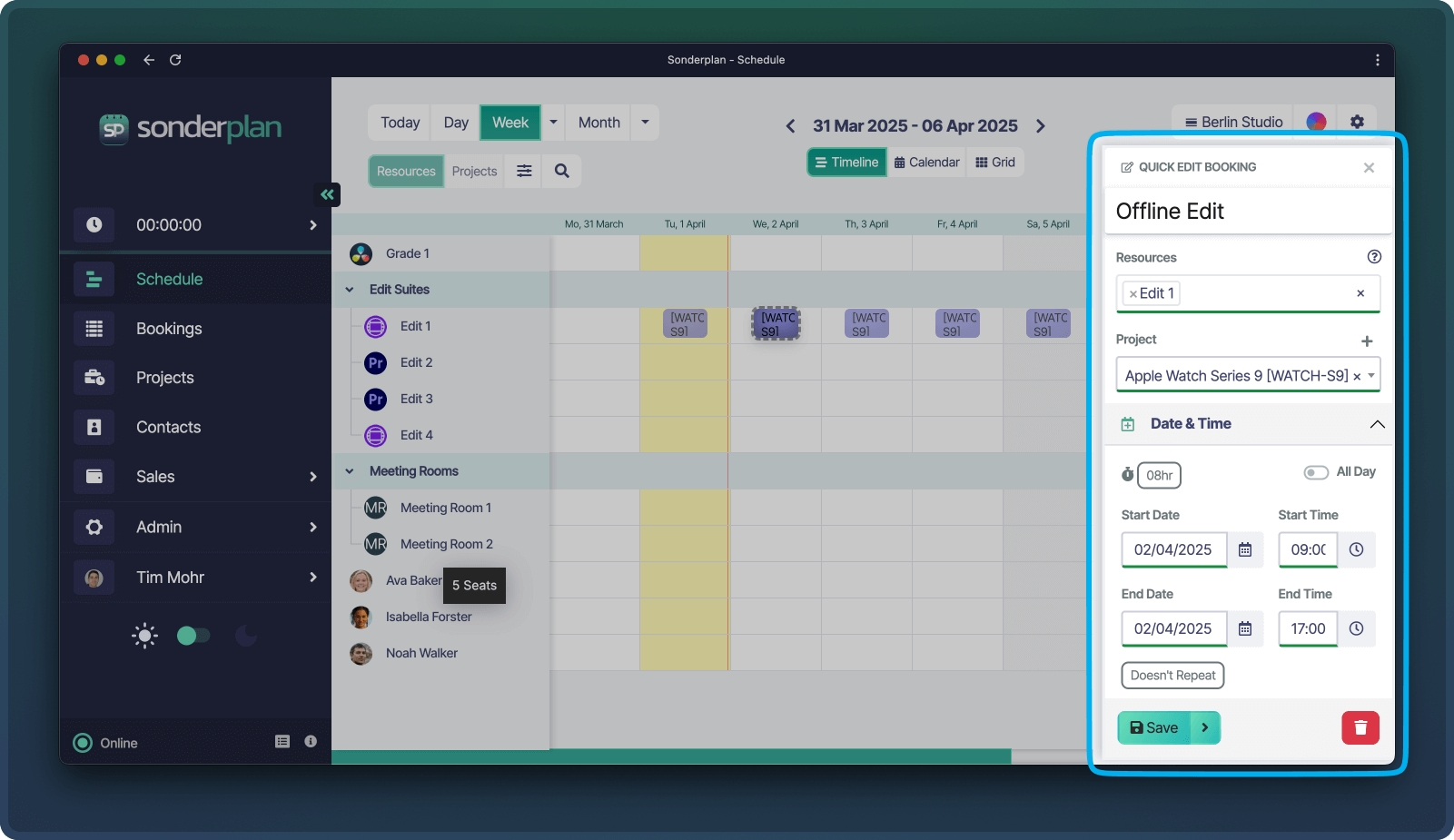
When on the Schedule, the fastest method of editing bookings is the *Quick Edit* window. To open it, you can single click on a booking and then press ⌘ + eCtrl + e to open the booking in the Quick Edit sidebar.
Alternatively, you can open via the [Quick Info Popover](/en/ui/schedule#quick-info-popover), by clicking on the Pencil Edit Icon.
 ### Booking Editor
To edit all the properties of a Booking, use the *Booking Editor*, which is available on the Schedule and from the Booking Data Table.
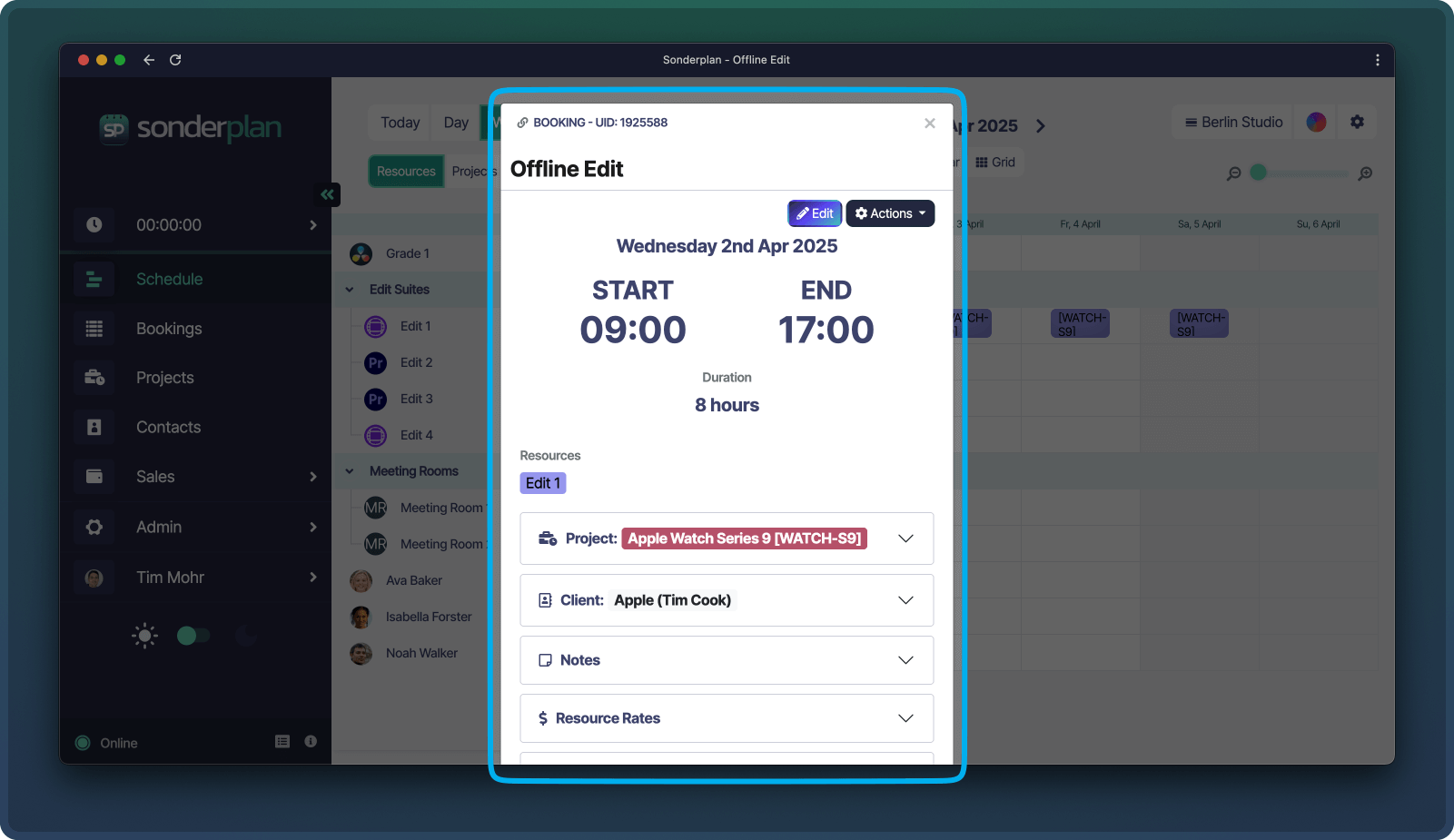
To open it from the Schedule, single click a booking and then press ⌘ + oCtrl + o, or use the [Quick Info Popover](/en/ui/schedule#quick-info-popover) to open load the booking into the Booking Editor.
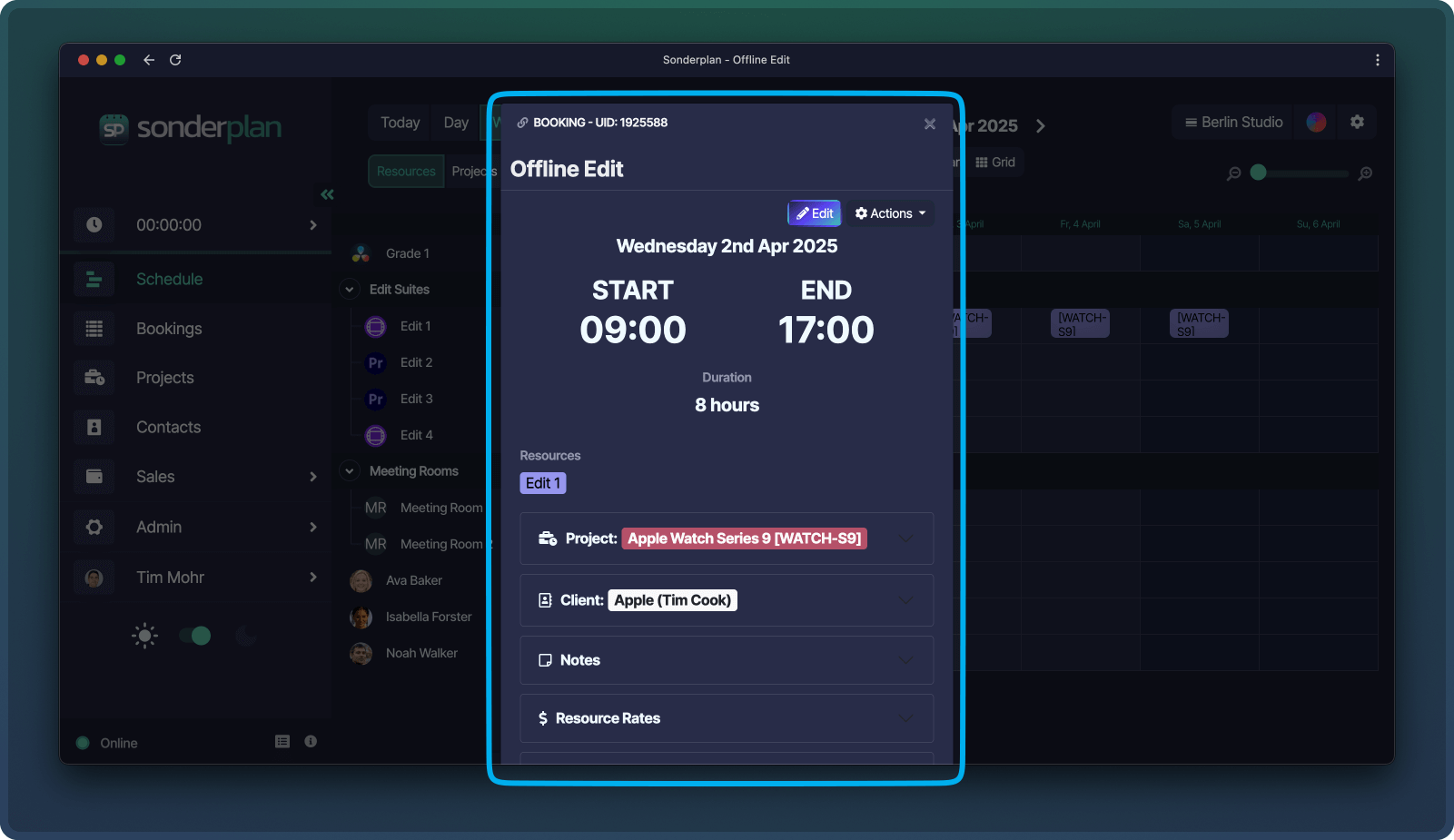
The Booking editor loads a read only preview of the booking, click the *Edit* button to make changes.
### Booking Editor
To edit all the properties of a Booking, use the *Booking Editor*, which is available on the Schedule and from the Booking Data Table.
To open it from the Schedule, single click a booking and then press ⌘ + oCtrl + o, or use the [Quick Info Popover](/en/ui/schedule#quick-info-popover) to open load the booking into the Booking Editor.
The Booking editor loads a read only preview of the booking, click the *Edit* button to make changes.
 ### Comparison of Editors
The following is a break-down of the features available in the two booking editors.
We are working on improving this and a future version of Sonderplan will combine these two editors into a single interface
| Booking Property | Booking Editor | Quick Edit Sidebar |
| ------------------------------------ | :------------------------------------: | :------------------------------------: |
| Name | | |
| Start & End Date | | |
| Duration | | |
| Project | | |
| Client | | |
| [Status](/en/admin/booking-statuses) | | |
| Custom Fields | | |
| Notes | | |
| Resource Rates | | |
| Billable Items | | |
| Quotes | | |
| Invoices | | |
| Time Logs | | |
| File Attachments | | |
| Print Booking | | |
| Prefill Quote / Invoice | | |
| Booking History | | |
### Booking Locks
Sonderplan prevents the possibility of losing changes to bookings caused by multiple people editing the same booking, through the use of Booking Locks.
### Comparison of Editors
The following is a break-down of the features available in the two booking editors.
We are working on improving this and a future version of Sonderplan will combine these two editors into a single interface
| Booking Property | Booking Editor | Quick Edit Sidebar |
| ------------------------------------ | :------------------------------------: | :------------------------------------: |
| Name | | |
| Start & End Date | | |
| Duration | | |
| Project | | |
| Client | | |
| [Status](/en/admin/booking-statuses) | | |
| Custom Fields | | |
| Notes | | |
| Resource Rates | | |
| Billable Items | | |
| Quotes | | |
| Invoices | | |
| Time Logs | | |
| File Attachments | | |
| Print Booking | | |
| Prefill Quote / Invoice | | |
| Booking History | | |
### Booking Locks
Sonderplan prevents the possibility of losing changes to bookings caused by multiple people editing the same booking, through the use of Booking Locks.
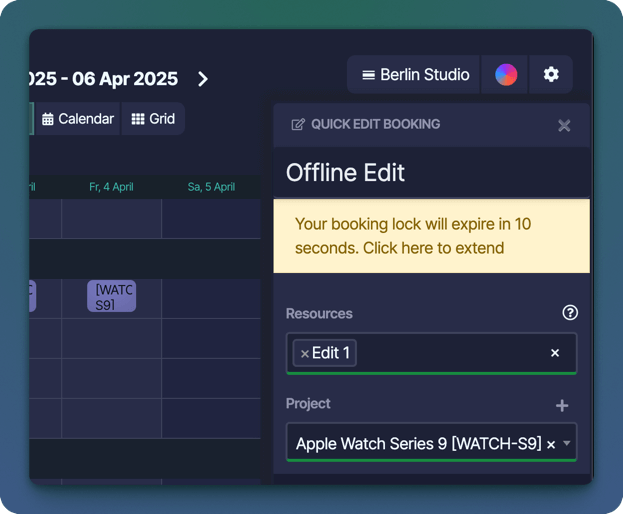 When a booking is opened in either the [Quick Editor Sidebar](/en/bookings/basics#quick-edit-sidebar), or the [Booking Editor](/en/bookings/basics#booking-editor), Sonderplan will initiate a booking lock for that user. The booking lock prevents other users from opening the same booking until the lock owner closes the booking editor, or until a period of 10minutes has passed.
Before a booking locks, the owner is shown a 30-second countdown giving them the opportunity to extend the lock for another 10minutes. If a booking lock has expired, the owner editing the booking will see a notice that the booking was locked and will need to reopen the booking to receive a new lock.
### Live Updates
Sonderplan will broadcast changes when bookings are created, edited or deleted to all authorised clients, avoiding the need to manually refresh the Schedule. Live updates require a constant connection to our live update service, and you can see the [status of this service](/en/ui/general#live-updates-status) in the bottom left hand corner of the main application screen.
There are some instances where live updates won't be received, usually because the computer went to sleep, or there was a network interruption. In this case, Sonderplan will show a button that will initiate a manual Schedule re-sync.
### Updating Multiple Bookings
To update the properties of multiple bookings, you can use the checkboxes feature of the Bookings Data Table to select multiple bookings and edit certain properties, *en masse*.
## Deleting Bookings
Bookings can be deleted directly from the Schedule, the Bookings Data Table, within the [Quick Edit Sidebar](/en/bookings/basics#quick-edit-sidebar) and the [Booking editor](/en/bookings/basics#booking-editor).
When a booking is opened in either the [Quick Editor Sidebar](/en/bookings/basics#quick-edit-sidebar), or the [Booking Editor](/en/bookings/basics#booking-editor), Sonderplan will initiate a booking lock for that user. The booking lock prevents other users from opening the same booking until the lock owner closes the booking editor, or until a period of 10minutes has passed.
Before a booking locks, the owner is shown a 30-second countdown giving them the opportunity to extend the lock for another 10minutes. If a booking lock has expired, the owner editing the booking will see a notice that the booking was locked and will need to reopen the booking to receive a new lock.
### Live Updates
Sonderplan will broadcast changes when bookings are created, edited or deleted to all authorised clients, avoiding the need to manually refresh the Schedule. Live updates require a constant connection to our live update service, and you can see the [status of this service](/en/ui/general#live-updates-status) in the bottom left hand corner of the main application screen.
There are some instances where live updates won't be received, usually because the computer went to sleep, or there was a network interruption. In this case, Sonderplan will show a button that will initiate a manual Schedule re-sync.
### Updating Multiple Bookings
To update the properties of multiple bookings, you can use the checkboxes feature of the Bookings Data Table to select multiple bookings and edit certain properties, *en masse*.
## Deleting Bookings
Bookings can be deleted directly from the Schedule, the Bookings Data Table, within the [Quick Edit Sidebar](/en/bookings/basics#quick-edit-sidebar) and the [Booking editor](/en/bookings/basics#booking-editor).
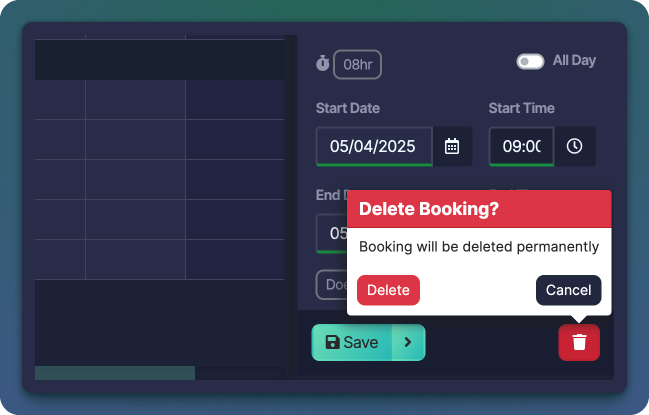 On the Schedule you can trigger a delete by single clicking a booking and either pressing deldel or clicking the delete icon in the [Quick Info Popover](/en/ui/schedule#quick-info-popover). The delete confirmation window can be confirmed by clicking **Delete** or by pressing ⌘ + ⏎Ctrl + ⏎
Before a booking is deleted, a confirmation window will be shown to confirm the action.
Currently, deleted bookings cannot be restored via the user interface (UI). However, it is possible to retrieve a deleted booking via the Booking API.
## Learn More
Explore the different schedule views available in Sonderplan, including timeline, calendar, and grid layouts—each designed to support different planning needs.
On the Schedule you can trigger a delete by single clicking a booking and either pressing deldel or clicking the delete icon in the [Quick Info Popover](/en/ui/schedule#quick-info-popover). The delete confirmation window can be confirmed by clicking **Delete** or by pressing ⌘ + ⏎Ctrl + ⏎
Before a booking is deleted, a confirmation window will be shown to confirm the action.
Currently, deleted bookings cannot be restored via the user interface (UI). However, it is possible to retrieve a deleted booking via the Booking API.
## Learn More
Explore the different schedule views available in Sonderplan, including timeline, calendar, and grid layouts—each designed to support different planning needs.