> ## Documentation Index
> Fetch the complete documentation index at: https://docs.sonderplan.com/llms.txt
> Use this file to discover all available pages before exploring further.
# Export Bookings
> Learn how to export bookings to print, PDF, or Excel for easy sharing, reporting, or record-keeping.
## Print Bookings
To print a single booking, open the booking in the [Booking Editor](/en/bookings/basics#booking-editor) and click on the ** Actions** button dropdown **-> Print -> Print Summary**.
A print friendly version of the booking will open up in a new window, where you can select a printer or save as a PDF. For more details, select the **Print Extended** option, which expands the sections of the booking to include information about the project and client.
## PDF Export Schedule
From the **Schedule** page, in the top right menu, click the ** -> Export -> PDF**. The *Schedule PDF Export* window opens and allows you to choose the paper size for the exported file.
Available Paper Size Options:
* **A4** (297 × 210 mm) - Standard international paper size, ideal for general printing. (Default selection)
* **A3** (420 × 297 mm) - Larger format suitable for more detailed or wider schedule views.
* **Letter** (8.5 × 11 in) - Common paper size in North America.
* **Tabloid** (17 × 11 in) - Wide-format paper, ideal for wall charts or large planning overviews.
Select the desired paper size and click the **Export PDF** button. The schedule may temporarily resize whilst the screen is captured and the PDF is generated. The PDF will be downloaded to your computer.
## Excel Export Bookings
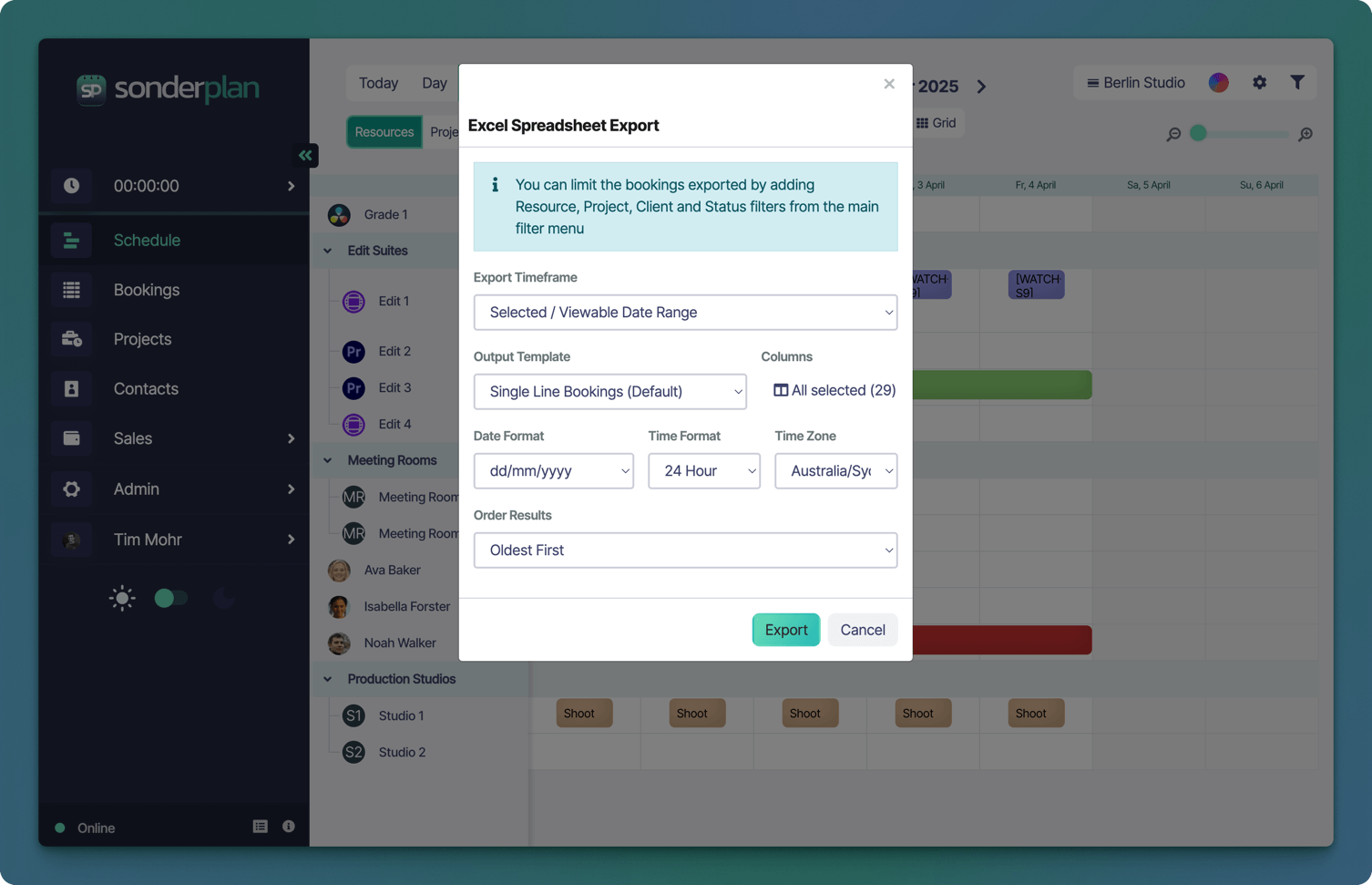
The Excel Export feature allows you to download a list of bookings in spreadsheet (.xlsx) format, perfect for reporting, sharing, or offline analysis. From the **Schedule** and **Bookings** pages, in the top right menu, click the ** -> Export -> Excel**.
The Excel Spreadsheet Export window will open, select from the following options and click the **Export** button to generate the Excel file and download to your computer.
 ### Filtering Bookings
Before you export, you can configure your booking filters to show only the bookings you require. For example, you could create a filter to only show bookings with certain resources, or have a particular client or status. These filters will be used by the Excel utility to export the filtered results to the spreadsheet.
### Export Settings
The following settings are available:
| Setting | Description | Options |
| -------------------- | -------------------------------------------------------------------------------------------------------------------------------- | ----------------------------------------------------------------------------------------------------------------------------------------------------------------------------------------------------- |
| **Export Timeframe** | The time frame of bookings that should be exported |
### Filtering Bookings
Before you export, you can configure your booking filters to show only the bookings you require. For example, you could create a filter to only show bookings with certain resources, or have a particular client or status. These filters will be used by the Excel utility to export the filtered results to the spreadsheet.
### Export Settings
The following settings are available:
| Setting | Description | Options |
| -------------------- | -------------------------------------------------------------------------------------------------------------------------------- | ----------------------------------------------------------------------------------------------------------------------------------------------------------------------------------------------------- |
| **Export Timeframe** | The time frame of bookings that should be exported | - Selected / Viewable Date Range
- This month
- Last 30 days
- Last 90 days
- All time
- Custom date range
|
| **Output Template** | Controls what information is output and how it is formatted | - **Single Line Bookings** - Each booking is output to a single line, resource names are comma seperated
- **Resource Grouped** - Each booking resource is output on a new line
|
| **Columns** | Select the booking properties, project and client attributes and custom fields that will be output as columns in the Excel file. | Column selection varies based on group module access |
| **Date format** | The format of date columns | - d/m/yy
- dd/mm/yy
- dd/mm/yyyy
- m/d/yy
- mm/dd/yy
- mm/dd/yyyy
- yy/m/d
- yy/mm/dd
- yyyy/mm/dd
|
| **Time format** | Select either 24 Hour or 12 Hour time display. | |
| **Time Zone** | Sets which timezone the bookings should be offset to | *All standard timezones* |
| **Order Results** | Sets the order in which bookings will be output | |