> ## Documentation Index
> Fetch the complete documentation index at: https://docs.sonderplan.com/llms.txt
> Use this file to discover all available pages before exploring further.
# Project Basics
> Quickly set up and manage every aspect of your project, centralising all the project metadata and attachments.
Projects are a great way to organise jobs that contain multiple bookings with your team members and clients. You can also add files, specific resource rates, quotes and invoices and control access for your team.
## Project Properties
Projects must always include a **name**. Additionally, projects may include any of the following properties:
Multiple bookings may be assigned to a project and several booking properties flow through to the project
Any time entries that were logged by resources directly to any booking assigned to the project
Pulls through client contact info and used to prefill quotes / invoices
Projects have two statuses, In Progress and Archived
Projects may be organised into folders, great for episodic productions
A start and end date can be set to mark the anticipated timeline of the project
Phases and milestones can be added to projects, which are displayed on the project timeline
Details about the linked quotes & invoices attached to the project
Files that are related to this project can be uploaded and attached directly
Users and groups can be added to private projects, giving them access to view associated bookings
Single, multi line, select menu and date picker input fields can be added to projects
Reports about resource utilisation, booking totals, time logs related to the project
Calendar feed which contains all the bookings related to the project
Details about who, changed what, including when they did it
## Creating a Project
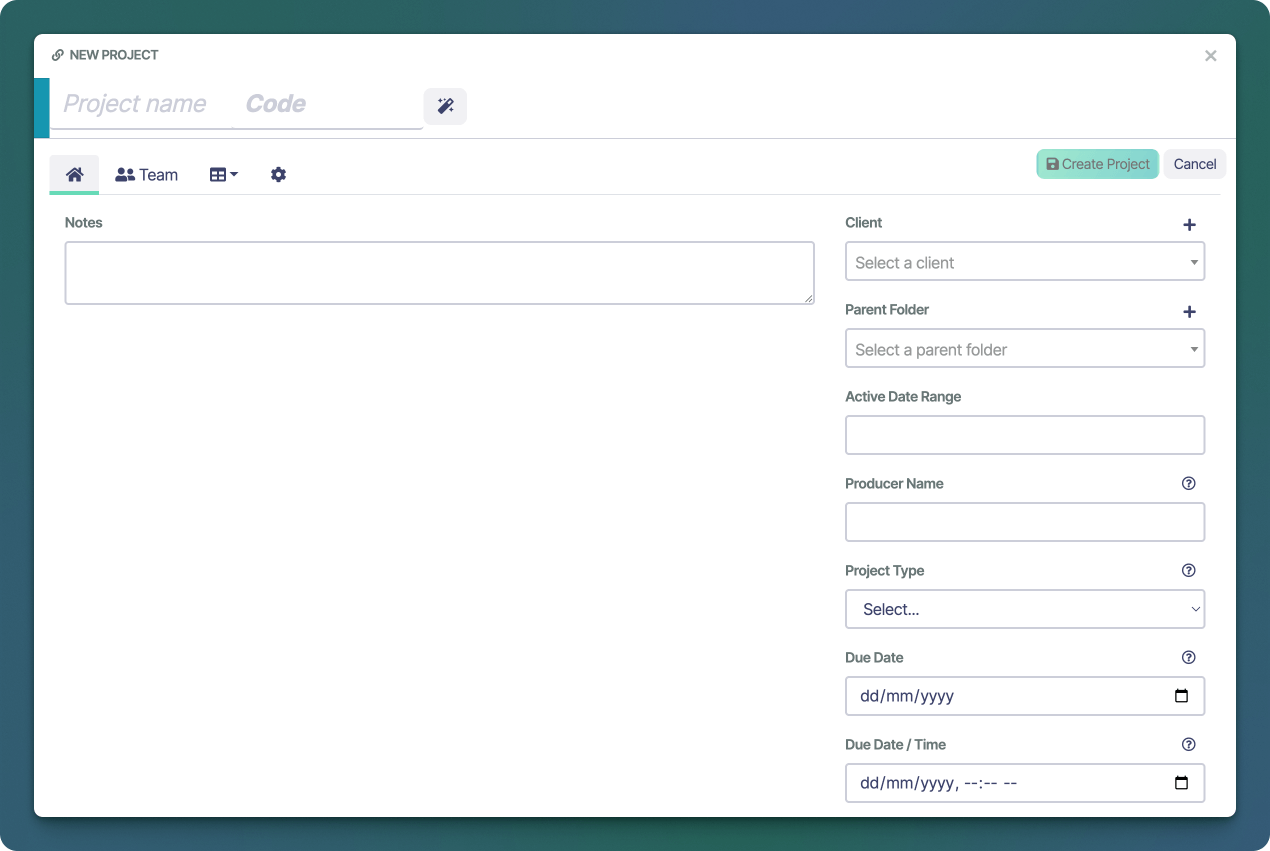
To create a project you must be in a user group with **Edit** permissions to the project module. Please contact your account administrator if you do not see the **New** button on the Projects page
Projects may be created from the main Projects page by clicking the **New** button above the projects table. Projects may also be created *inline* directly from within **Bookings**, **Quotes** and **Invoices** by clicking on the button next to the **Project** label.
 ### Assigning Project Colour
To assign a project colour, click on the colour window to the left of the **Project Name** field, a colour picker will appear.
### Assigning Project Colour
To assign a project colour, click on the colour window to the left of the **Project Name** field, a colour picker will appear.
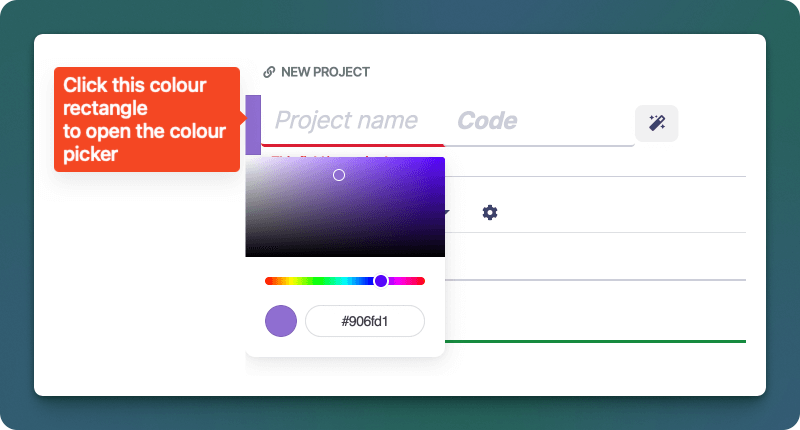 Project colours can be used to colour bookings on the Schedule, when the [Colour Mode](/en/bookings/schedule#booking-colors) is set to **Project**.
### Automatically filling Project Code
Sonderplan can automatically set your numerical project codes, ensuring you don't accidentally have duplicates. To fill a project code automatically, click on the button and the next project code number will be displayed.
To change the next project code, you can make the change in the [Admin Project Settings](/en/admin/global-project-settings)
## Projects Table
The projects table will show you any project set with the *Everyone* visibility, as well as any *Private* projects to which you've been added to, either directly or via your user group.
Users with **View** access to the **Admin** module will see all projects, even if they have not been added to a project
Project colours can be used to colour bookings on the Schedule, when the [Colour Mode](/en/bookings/schedule#booking-colors) is set to **Project**.
### Automatically filling Project Code
Sonderplan can automatically set your numerical project codes, ensuring you don't accidentally have duplicates. To fill a project code automatically, click on the button and the next project code number will be displayed.
To change the next project code, you can make the change in the [Admin Project Settings](/en/admin/global-project-settings)
## Projects Table
The projects table will show you any project set with the *Everyone* visibility, as well as any *Private* projects to which you've been added to, either directly or via your user group.
Users with **View** access to the **Admin** module will see all projects, even if they have not been added to a project