> ## Documentation Index
> Fetch the complete documentation index at: https://docs.sonderplan.com/llms.txt
> Use this file to discover all available pages before exploring further.
# Editor Interface
> Design and dispatch polished quotes and invoices directly from Sonderplan, in one intuitive interface.
The *Quote & Invoice Editor* in Sonderplan provides a simple interface for creating, editing, and managing quotes and invoices. The layout, controls, and workflows are identical for both.
From this point, we'll mostly talk about creating and editing **quotes**, however the process with invoices is almost identical!
To navigate to the Quote editor in Sonderplan, open the main navigation menu and expand the **Sales** menu.
To open an existing quote, click on the **Quote Number** from the **Quotes** table, or to create a new quote click on the **New** button **->Quote**.
 ## Header Toolbar
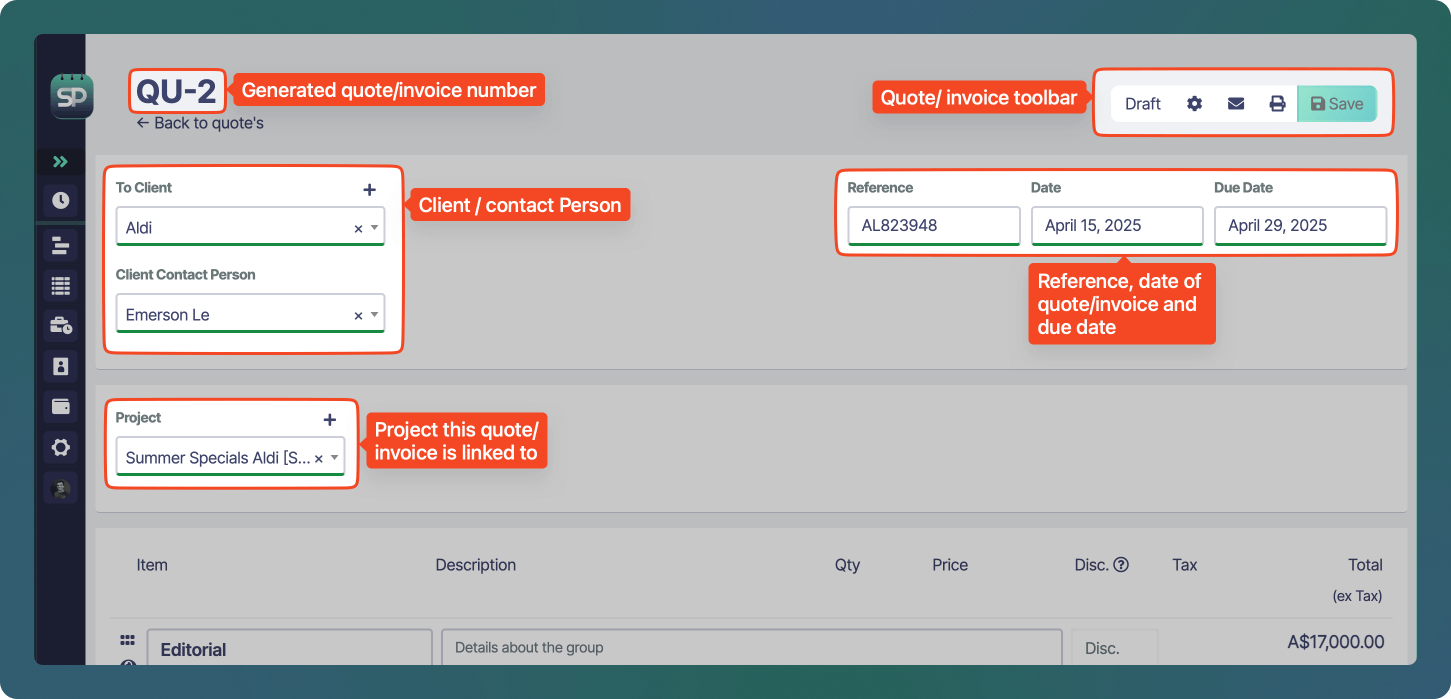
If you open an existing quote, in the top left of the editor, you'll see the generated **quote number**. If you're working on a new quote, this number will be generated when you first click the **Save** button.
In the top-right, you’ll find:
* **Status** Menu (e.g., Draft): Shows current document status; click to change (e.g., to Sent, Accepted).
**Quote Statuses** - **Draft, Sent, Accepted, Invoiced** and **Declined**
**Invoice Statuses** - **Draft, Submitted, Awaiting Payment** and **Paid**
* - **Settings**: Opens the actions menu for advanced operations such as exporting to PDF, changing the currency or theme
* - **Email**: Opens the Send modal for emailing the PDF to the client or contact person specified on the quote
* - **Print**: Generates a print-friendly view or PDF.
* - **Save**: Saves your changes.
### Updating Document Prefix
Sonderplan allows you to override the prefix for an individual **quote** or **invoice**, providing flexibility when a specific document needs a different numbering format.
#### How to update the prefix
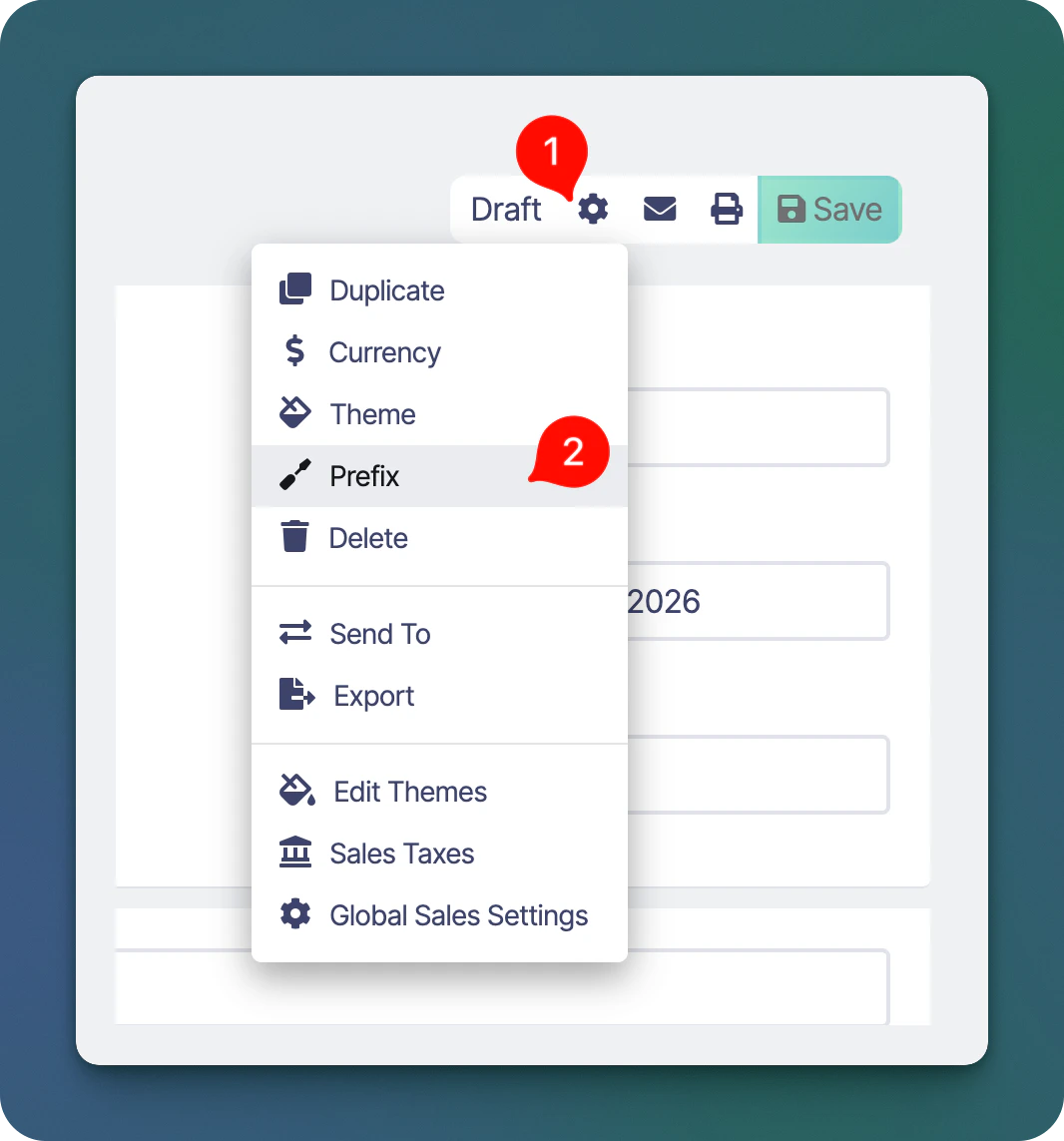
1. Open the **Quote** or **Invoice**
2. Click the **settings (⚙️) icon** in the top toolbar
3. Select **“Prefix”** from the dropdown menu
4. Enter your desired prefix and save
## Header Toolbar
If you open an existing quote, in the top left of the editor, you'll see the generated **quote number**. If you're working on a new quote, this number will be generated when you first click the **Save** button.
In the top-right, you’ll find:
* **Status** Menu (e.g., Draft): Shows current document status; click to change (e.g., to Sent, Accepted).
**Quote Statuses** - **Draft, Sent, Accepted, Invoiced** and **Declined**
**Invoice Statuses** - **Draft, Submitted, Awaiting Payment** and **Paid**
* - **Settings**: Opens the actions menu for advanced operations such as exporting to PDF, changing the currency or theme
* - **Email**: Opens the Send modal for emailing the PDF to the client or contact person specified on the quote
* - **Print**: Generates a print-friendly view or PDF.
* - **Save**: Saves your changes.
### Updating Document Prefix
Sonderplan allows you to override the prefix for an individual **quote** or **invoice**, providing flexibility when a specific document needs a different numbering format.
#### How to update the prefix
1. Open the **Quote** or **Invoice**
2. Click the **settings (⚙️) icon** in the top toolbar
3. Select **“Prefix”** from the dropdown menu
4. Enter your desired prefix and save
 #### What this affects
* The prefix change applies **only to the current document**
* It overrides the default prefix for this specific quote or invoice
* Other documents will continue using the global prefix settings
#### When to use this
* A document needs to follow a different numbering convention
* You are issuing documents for different business units or clients
* You need to correct or adjust a prefix on a one-off basis
#### Global prefix settings
If you want to update prefixes for all future documents, this can be configured in: [Admin → Global Sales Settings](/en/admin/global-sales-settings)
#### Notes
* Changing the prefix does **not** impact existing documents (other than the one being edited)
* Future documents will continue using the global prefix unless overridden individually
* Prefixes can be updated at any time
## Client / Contact Person
In the next section, you can select the **Client** that this quote will be attached to. The client field is required to be set to allow the quote to be saved. If the client selected is an *organization*, and if *people client contacts* have been added to the client organization, they will be selectable in the **Client Contact Person** menu.
## Reference / Dates
To the right of the client / contact fields are the **Reference**, **Date** and **Due Date** fields.
## Project / Custom Fields
Moving further down, you can select the **Project** that this quote is related to. If you have created **Custom Fields** for the *quote and / or invoice* modules they will also appear in this section.
## Quote & Invoice Items
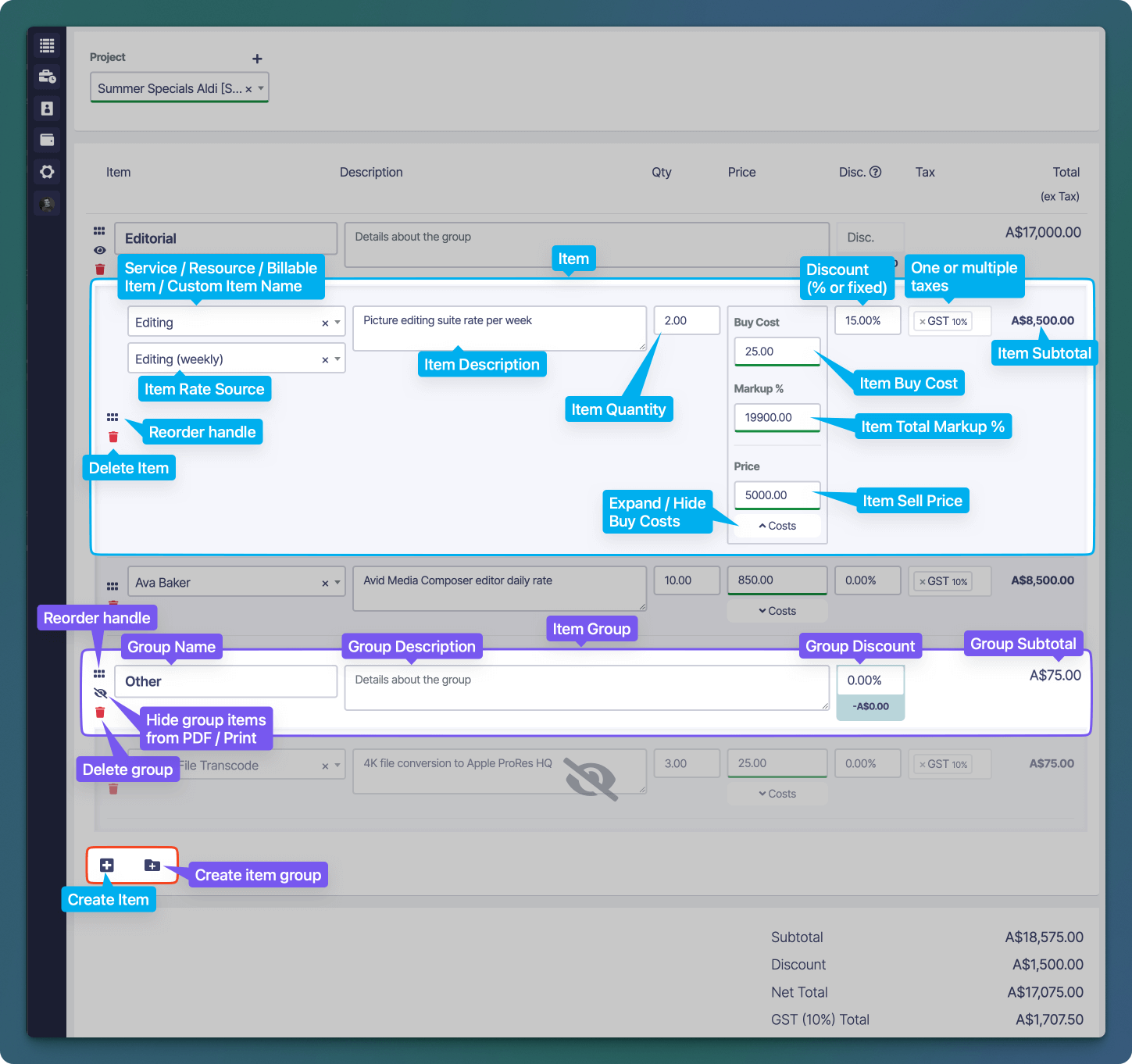
Use the Items & Groups section of the Quote/Invoice Editor to organize your services, products, or custom line items into logical sections, apply discounts and taxes, and manage internal cost and pricing details.
Items and groups can be re-arranged by clicking and dragging the item/grou from the area. Items can be moved in and out of groups, however only a single level of grouping is supported, groups cannot be nested within other groups.
### Add New Item
Click the button to add a new item to your quote. The **Item Name** menu will be immediately opened with all **Services**, **Resources** and **Billable Items**. You can start typing to quickly find the correct item, or you can also type the complete name of the item and press ⏎ to create a custom item.
### Add New Group
Click the button to add a new group to your quote, enter a **Group Name** and optional **Description** for the group. You can also apply a group discount that will apply the same discount to each item within the group.
#### What this affects
* The prefix change applies **only to the current document**
* It overrides the default prefix for this specific quote or invoice
* Other documents will continue using the global prefix settings
#### When to use this
* A document needs to follow a different numbering convention
* You are issuing documents for different business units or clients
* You need to correct or adjust a prefix on a one-off basis
#### Global prefix settings
If you want to update prefixes for all future documents, this can be configured in: [Admin → Global Sales Settings](/en/admin/global-sales-settings)
#### Notes
* Changing the prefix does **not** impact existing documents (other than the one being edited)
* Future documents will continue using the global prefix unless overridden individually
* Prefixes can be updated at any time
## Client / Contact Person
In the next section, you can select the **Client** that this quote will be attached to. The client field is required to be set to allow the quote to be saved. If the client selected is an *organization*, and if *people client contacts* have been added to the client organization, they will be selectable in the **Client Contact Person** menu.
## Reference / Dates
To the right of the client / contact fields are the **Reference**, **Date** and **Due Date** fields.
## Project / Custom Fields
Moving further down, you can select the **Project** that this quote is related to. If you have created **Custom Fields** for the *quote and / or invoice* modules they will also appear in this section.
## Quote & Invoice Items
Use the Items & Groups section of the Quote/Invoice Editor to organize your services, products, or custom line items into logical sections, apply discounts and taxes, and manage internal cost and pricing details.
Items and groups can be re-arranged by clicking and dragging the item/grou from the area. Items can be moved in and out of groups, however only a single level of grouping is supported, groups cannot be nested within other groups.
### Add New Item
Click the button to add a new item to your quote. The **Item Name** menu will be immediately opened with all **Services**, **Resources** and **Billable Items**. You can start typing to quickly find the correct item, or you can also type the complete name of the item and press ⏎ to create a custom item.
### Add New Group
Click the button to add a new group to your quote, enter a **Group Name** and optional **Description** for the group. You can also apply a group discount that will apply the same discount to each item within the group.
 ## Totals
The following totals will be calculated and displayed at the bottom of the quote.
| Type | Description |
| ---------------- | ----------------------------------------------------------------------------------- |
| Sub Total | Total of all quote items before tax and discounts are applied |
| Discount Total | Total amount discounted from the quote |
| Net Total | Subtotal after any discounts, not including taxes |
| Tax Total | The amount of tax charged on the quote |
| Total | The grand total (net + tax) of the quote |
| Total Costs | The total amount of buy costs of the quote |
| Estimated Margin | Shows projected profit for the quote, calculated as profit/total revenue percentage |
## Terms
The **Terms** text input lets you communicate all the fine print your client needs to know before accepting a quote, use this field to spell out your payment and contractual conditions. Typical clauses include:
* Validity: How long the quote remains open (e.g. “Valid for 30 days from date of issue”).
* Deposit & Payment Schedule: Any upfront deposit (e.g. “50% due on acceptance”) and when the remainder is payable (e.g. “Balance due within 14 days of delivery”).
* Late Fees: Interest or penalties applied to overdue balances (e.g. “1.5% per month on outstanding amounts”).
* Scope & Extras: Clarify that out-of-scope work will be billed separately at your standard rates.
* Exclusions: Note any costs not included (taxes, duties, shipping, etc.).
* Cancellation Policy: Notice periods and any non-refundable deposit terms (e.g. “Cancellations must be submitted in writing at least 7 days before start date; deposits non-refundable”).
## Totals
The following totals will be calculated and displayed at the bottom of the quote.
| Type | Description |
| ---------------- | ----------------------------------------------------------------------------------- |
| Sub Total | Total of all quote items before tax and discounts are applied |
| Discount Total | Total amount discounted from the quote |
| Net Total | Subtotal after any discounts, not including taxes |
| Tax Total | The amount of tax charged on the quote |
| Total | The grand total (net + tax) of the quote |
| Total Costs | The total amount of buy costs of the quote |
| Estimated Margin | Shows projected profit for the quote, calculated as profit/total revenue percentage |
## Terms
The **Terms** text input lets you communicate all the fine print your client needs to know before accepting a quote, use this field to spell out your payment and contractual conditions. Typical clauses include:
* Validity: How long the quote remains open (e.g. “Valid for 30 days from date of issue”).
* Deposit & Payment Schedule: Any upfront deposit (e.g. “50% due on acceptance”) and when the remainder is payable (e.g. “Balance due within 14 days of delivery”).
* Late Fees: Interest or penalties applied to overdue balances (e.g. “1.5% per month on outstanding amounts”).
* Scope & Extras: Clarify that out-of-scope work will be billed separately at your standard rates.
* Exclusions: Note any costs not included (taxes, duties, shipping, etc.).
* Cancellation Policy: Notice periods and any non-refundable deposit terms (e.g. “Cancellations must be submitted in writing at least 7 days before start date; deposits non-refundable”).