

Supported File Format
.vcf (vCard) Supported exports include:- Apple Contacts
- Google Contacts
- Outlook
- Most CRM and contact management tools
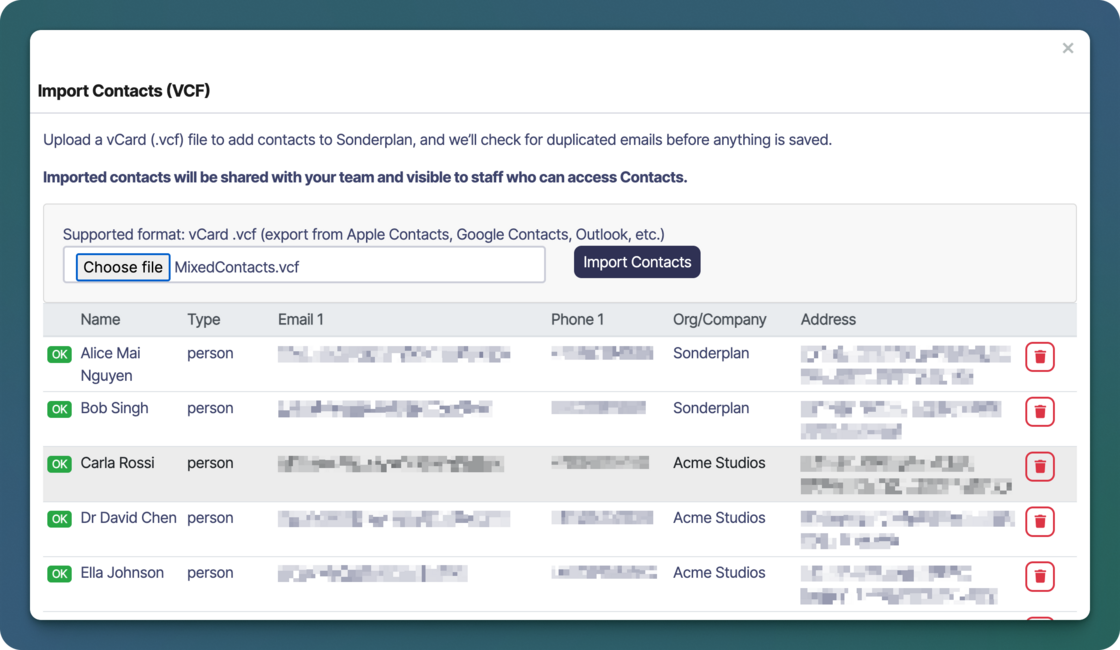
What Gets Imported
When you upload a VCF file, Sonderplan will automatically extract and import:- Contact name
- Email address(es)
- Phone number(s)
- Organisation / company name
- Address details (where available)
Visibility & Permissions
Any user who is in a group with edit permissions to the Contact module can use the Import Contact feature. Imported contacts are shared with your team and contacts are visible to staff who have access to Contacts.How to Import Contacts
The import process happens in a two-step ‘staged’ process, so you can preview the contacts to be imported before commiting to any changes.- Navigate to Contacts → Import → Import Contacts
- Click Choose file and select a .vcf file from your computer
- Review the list of detected contacts
- Click Import Contacts to add them to your Sonderplan instance
Notes & Limitations
- Currently, only VCF files are supported however we are open to support additional formats in the future.
- Duplicate detection is currently based on email addresses
- Very large VCF files may take longer to process